Jun 24, 2026
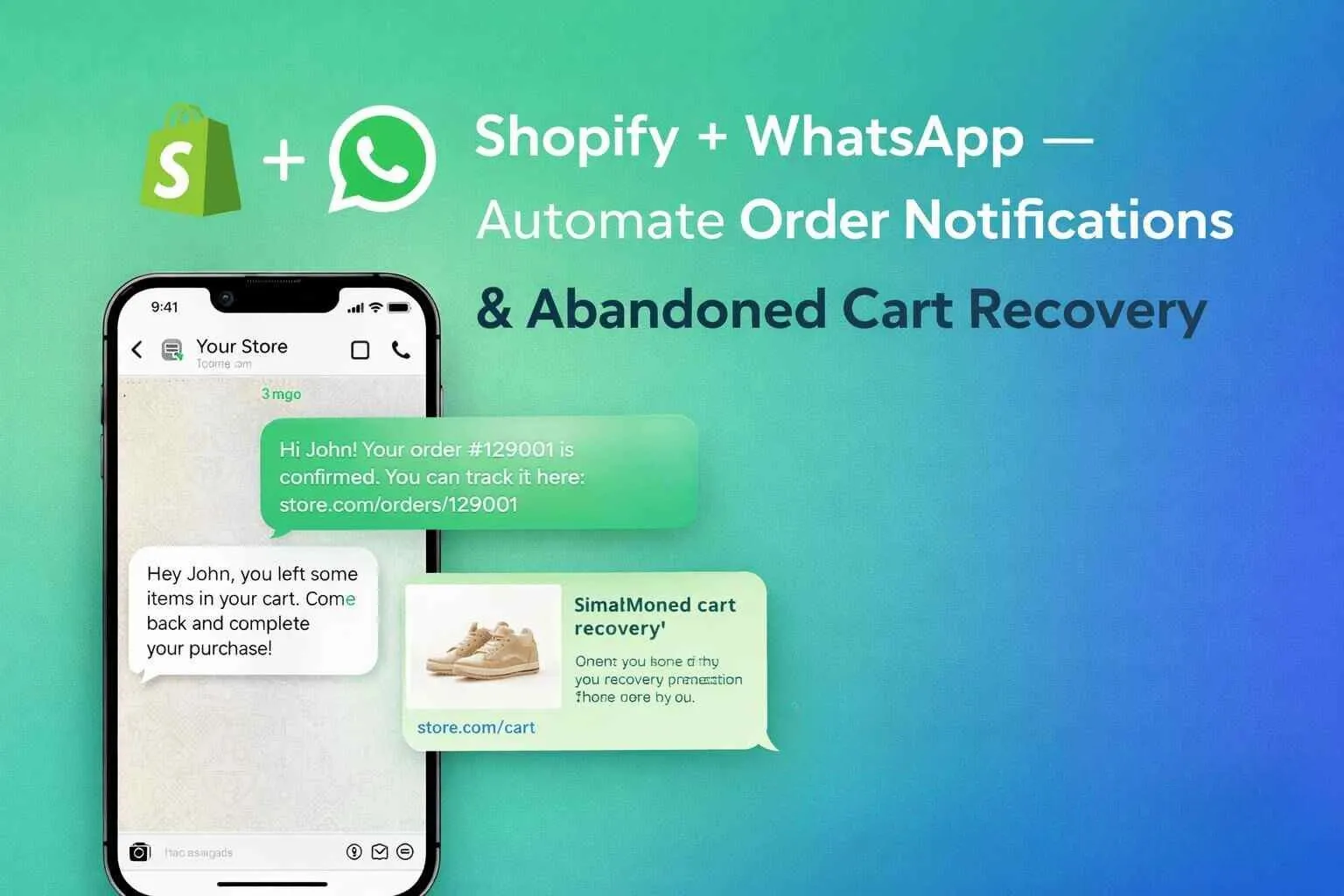
Learn how to integrate Shopify with WhatsApp using WABA NXCMSG to automate order notifications and recover abandoned carts. Send real-time updates, improve customer engagement, and boost conversions with WhatsApp automation for eCommerce businesses.
98%WhatsApp open rate vs 20% for Shopify email notifications
15–25%abandoned cart recovery rate via WhatsApp vs 3–5% email
6core features: chat widget, order notifications, cart recovery + more
30 minfrom Shopify app install to first WhatsApp notification live
Shopify sends email order confirmations that customers open 2 days later, if ever. Meanwhile, the customer who abandoned their cart has already forgotten your store. The Waba NXC Chat & Notifications Shopify app — powered by WABA NXCMSG — changes this: your Shopify store sends automatic WhatsApp messages for every order, every cart abandonment, every delivery update. Real messages. Real delivery. Real conversions.
What Is Waba NXC Chat & Notifications for Shopify?
Waba NXC Chat & Notifications is a Shopify app that connects your Shopify store to the WABA NXCMSG WhatsApp Business API platform — enabling your store to automatically send WhatsApp messages to customers for order events, abandoned carts, and provide a live WhatsApp chat widget on your storefront. It's available on the Shopify App Store at apps.shopify.com/waba-order-notification-app.
NXCMSG
💬
Integrate &
Automate
Automate
Boost Sales
& Support
& Support
Waba NXC Chat & Notifications
Features:
WhatsApp Chat Widget
Template Management & Testing
Shopify Order Notifications
Multi-language Support
Abandoned Cart Recovery
Easy Configuration
Powered by Waba NXC Panel API
📸 Waba NXC Chat & Notifications — Shopify App Store listing (apps.shopify.com/waba-order-notification-app)
6 Core Features — What the App Does
WhatsApp Chat Widget
Adds a WhatsApp chat button to your Shopify storefront. Customers click it to start a conversation with your team directly on WhatsApp — no form, no email, no waiting. The widget shows your NXCMSG business number and is configurable for desktop and mobile.
Shopify Order Notifications
Automatically sends WhatsApp messages when Shopify order events fire — Order Processing (payment received), Order Completed (shipped/fulfilled), and custom events. Uses your NXCMSG approved templates mapped directly to Shopify order webhooks.
Abandoned Cart Recovery
When a customer adds products to their Shopify cart and leaves without completing checkout, the app triggers a WhatsApp recovery message with their cart link. Recovers 15–25% of abandoned carts — vs 3–5% for email.
Template Management & Testing
Map your NXCMSG-approved WhatsApp templates to each Shopify event (abandoned cart, order processing, order completed). The "Send Test" button sends a real WhatsApp to your test phone number — so you verify exactly how the message looks before going live.
Multi-language Support
Configure templates in multiple languages — English, Hindi, regional Indian languages — matching the language of your target customer segment. Templates show the language tag (e.g., en_US, hi_IN) for clear identification during mapping.
Easy Configuration
The entire setup is done inside your Shopify admin panel — no external dashboards, no developer required. Enter your NXCMSG API credentials, select your templates, and the app connects your store to WhatsApp in minutes.
📌
Powered by WABA NXCMSG
The Waba NXC Shopify app is powered by the WABA NXCMSG platform — a Meta-approved WhatsApp Business Solution Provider. Your WhatsApp templates are created and approved in NXCMSG, then connected to your Shopify store through the app. All message delivery, analytics, and compliance are handled by NXCMSG's WhatsApp Business API infrastructure.
How to Install & Configure the App — Step-by-Step
-
Install the App from Shopify App Store
Go to apps.shopify.com/waba-order-notification-app and click Install. Approve the permissions requested — the app needs access to orders, customers, and storefront to function. After installation, you'll see the app in your Shopify admin under Apps → waba-order-notification-app.
🛍️ Available on all Shopify plans including Basic -
Get Your NXCMSG API Credentials
Before configuring the app, you need your NXCMSG API credentials. Log into your NXCMSG account at wabav2.nxccontrols.in, go to Settings → API, and copy your API URL (https://waba.nxccontrols.in/), App Key, and Auth Key. Also note the WhatsApp phone number registered on your NXCMSG account.
💡 Don't have NXCMSG yet? Start your 14-day free trial at waba.nxccontrols.in/pricing -
Enter API Configuration in the Shopify App
In your Shopify admin, open the app and fill in the API Configuration section: Waba API URL, App Key, Auth Key, WhatsApp Number, and optionally a Test Phone Number for verifying templates before going live. Click Save Credentials.
-
Map Templates to Shopify Events
In the Template Mapping section, select your approved NXCMSG templates for each event: Abandoned Cart Recovery, Order Processing, and Order Completed. Click Refresh Templates to pull the latest approved templates from your NXCMSG account. Use Send Test to verify each template on your test phone.
-
Save Templates and Go Live
Click Save Templates — the app is now live. The next time a customer abandons a cart, places an order, or receives a fulfilment update, they'll automatically receive the corresponding WhatsApp message. No further action needed.
✅ Test with a real Shopify test order to verify end-to-end WhatsApp delivery
Screenshot: API Configuration in Shopify Admin
After installing the app, this is what you see in your Shopify admin panel. The API Configuration section connects your Shopify store to your NXCMSG account using four credentials.
💬 waba-order-notification-app
Waba Chat & Notifications
API Configuration
https://waba.nxccontrols.in/
3ff02d1f-5be2-4ff0-a5fb-cf418eaa97f6
••••••••••••••••••••••••••••••••••••••••••••••
15557098849
Show on chat widget
919998797232
For testing templates
📸 Screenshot 2 — Shopify Admin: API Configuration with Waba API URL, App Key, Auth Key, WhatsApp Number, and Test Phone Number
What Each Field Means
- Waba API URL — The base URL of your NXCMSG instance. Always
https://waba.nxccontrols.in/for NXCMSG customers. - App Key — Your unique NXCMSG API application key. Found in your NXCMSG dashboard under Settings → API. This identifies your account.
- Auth Key — Your NXCMSG authentication key (secret). Stored securely, never displayed again after saving. Authorises the app to send messages on behalf of your NXCMSG account.
- WhatsApp Number — The phone number registered on your NXCMSG account. This is the number that sends all customer WhatsApp messages and appears on your store's chat widget.
- Test Phone Number — Your personal number for testing. When you click "Send Test" on any template, the test message goes to this number so you can verify it before live deployment.
Screenshot: Template Mapping — Abandoned Cart, Order Processing, Order Completed
Below the API Configuration, the Template Mapping section is where you connect your NXCMSG-approved WhatsApp templates to each Shopify order event. This is where the automation logic lives.
Template Mapping
Abandoned Cart Recovery
Order Processing
Order Completed
📸 Screenshot 3 — Template Mapping: Abandoned Cart Recovery, Order Processing, Order Completed — each with "Send Test" and template selector
Understanding the Template Mapping Interface
🔄
How "Refresh Templates" Works
Click Refresh Templates to pull the latest list of approved templates from your NXCMSG account. Any template you've recently submitted and had approved in NXCMSG will appear in the dropdown after refreshing. Templates show their name and language tag (e.g., abandoned_cart_template [en_US]) so you can clearly identify which version to select for each event.
🧪
Always Use "Send Test" Before Going Live
The Send Test button next to each template sends a real WhatsApp message to the Test Phone Number you entered in API Configuration. This lets you see exactly how the message appears on a customer's WhatsApp — the formatting, variable values, buttons, and timing. Always test all three templates (Abandoned Cart, Order Processing, Order Completed) before enabling the app for your live store traffic.
Screenshot: Real WhatsApp Messages Sent by the App
These are real WhatsApp messages delivered by the Waba NXC app during template testing — exactly what your customers will receive. The screenshot shows the WhatsApp inbox of "Digital Messaging Service" (the NXCMSG test account) with actual messages sent by the Shopify app.
NXC
Digital Messaging Service
NXCMSG · WhatsApp Business
📹
📞
⋮
Yesterday
Hi Test User! 👋
You left some items in your cart. Complete your purchase now: https://example.com/checkout
Thank you!
5:58 pm
Hello Test User! 🎉
Your order #12345 is being processed. Total: $100.00
Thank you for shopping with us!
5:58 pm
Hi Test User! 👋
You left some items in your cart. Complete your purchase now: https://yourshop.com/checkout
Thank you!
7:14 pm
Hi Test User! 👋
You left some items in your cart. Complete your purchase now: https://yourshop.com/checkout
Thank you!
7:17 pm
+
😊
🎤
📸 Screenshot 4 — Real WhatsApp test messages: Abandoned Cart recovery + Order Processing notification (#12345, $100.00)
Breaking Down What You See in the Screenshot
- Abandoned Cart message (5:58 pm): "Hi Test User! 👋 You left some items in your cart. Complete your purchase now: [checkout link]" — this fires automatically when a customer abandons their Shopify cart
- Order Processing message (5:58 pm): "Hello Test User! 🎉 Your order #12345 is being processed. Total: $100.00 Thank you for shopping with us!" — fires when Shopify marks the order as Processing (payment received)
- Abandoned Cart with store URL (7:14 & 7:17 pm): Subsequent test sends showing the dynamic checkout URL from your actual Shopify store — proving the app correctly pulls the real cart recovery link
- Real store URL visible: The message shows
https://yourshop.com/checkout— the app dynamically inserts your actual Shopify store's checkout recovery URL into each message
⚠️
Multiple Test Sends Are Normal
The screenshot shows 3 abandoned cart test messages at different times — this is from multiple "Send Test" clicks during template testing and configuration. In production, each customer only receives the abandoned cart message once (or as many times as configured in your NXCMSG settings) — not repeatedly. Test sends are isolated to your Test Phone Number only.
Case Study: D2C Brand — 19% Cart Recovery & 70% Support Reduction
D2C Skincare Brand — Ahmedabad
Shopify store · 800–1,200 orders/month · Waba NXC app + NXCMSG since Q3 2025
The Problem
Cart abandonment was at 71%. Shopify email notifications were going to spam folders — only 18% of order confirmation emails were being opened. Customer support WhatsApp (personal number) was receiving 60+ "is my order confirmed?" and "where is my order?" messages daily, consuming 3 hours of staff time.
The Setup
- Abandoned Cart Recovery: Mapped
abandoned_cart_template— fires 45 minutes after cart abandonment with the customer's name and checkout link - Order Processing: Mapped
order_processing_template— fires immediately when payment is confirmed, with order number and total amount - Order Completed: Mapped
order_completed— fires when Shopify marks order fulfilled, with tracking information and delivery estimate - Chat Widget: Added WhatsApp chat button to the store — customers click to start a pre-sales conversation on WhatsApp
Results — First 60 Days
19%Abandoned cart recovery rate (up from ~3% email)
70%Reduction in "where is my order?" support queries
95%Order notification open rate (vs 18% email)
₹2.1LAdditional revenue from recovered carts (60 days)
"Setting up the app took 20 minutes. We entered the API keys, mapped the templates, tested them, and it was live. The next morning we saw 6 abandoned cart recoveries overnight — while the store was closed and nobody was working. That had never happened with email."
— Founder, D2C Skincare Brand, Ahmedabad
Case Study: Fashion Store — ₹3.8L Revenue from Abandoned Cart WhatsApp
Women's Fashion Store — Mumbai
Shopify · 2,500+ orders/month · High average order value ₹2,200 · Waba NXC app
The Problem
This fashion store was processing 80–100 orders daily. Cart abandonment was generating 200–300 lost cart events per day — mostly from customers comparing prices or leaving to check size guides. Shopify's built-in email recovery was getting 4% recovery rate. The 3-message WhatsApp sequence was not in place.
The WhatsApp Cart Recovery Setup
- Message 1 (30 min): Mapped
abandoned_cart_template— "Hi [name]! You left [product] in your cart. Still interested? Tap here to complete your order" with direct checkout link - Order notifications:
order_processing_templatefires on payment — "Your order #[id] is confirmed! We're preparing it now 🎉" with order total - Order completed:
order_completedfires on fulfilment — "Your order has shipped! Track it here" with tracking link - Chat widget: WhatsApp chat button on product pages for pre-purchase size/fit queries
Results — 90 Days
₹3.8LRevenue from recovered carts in 90 days
22%Cart recovery rate (up from 4% email)
38%Increase in repeat purchases (order notifications built trust)
4.9★Google rating improvement from better post-purchase communication
"I was skeptical that WhatsApp would work better than email for cart recovery — our customers are urban women who check email regularly. But the data doesn't lie. 22% recovery vs 4% email. The WhatsApp messages feel personal. People reply to them. The conversation continues and they come back to buy."
— Marketing Head, Women's Fashion Store, Mumbai
Best Practices for Shopify WhatsApp Notifications
1. Create Separate Templates for Each Event Type
The app maps one template to each event — use this intentionally. Your Abandoned Cart template should be warm, soft, and reference the specific products. Your Order Processing template should be celebratory (order confirmed!). Your Order Completed template should include the tracking link and set delivery expectations. Don't use a generic template for all three — each touchpoint has a different emotional context.
2. Always Test with Your Real Test Phone Before Going Live
Use the Send Test button for each template before saving. Check that the customer name variable pulls correctly, the checkout URL is your actual store's URL (not example.com), and the order number/total appears as expected. This takes 5 minutes and prevents embarrassing template failures on your first real orders.
3. Set the Right Cart Abandonment Timing
The optimal abandoned cart WhatsApp timing in India is 30–45 minutes after abandonment for the first message. If the customer hasn't returned after 24 hours, a second message (configured in NXCMSG's chatbot or broadcast — not the Shopify app trigger itself) with a soft incentive can recover an additional 5–8%. Don't send the first message immediately — give the customer 20–30 minutes in case they're still browsing or momentarily distracted.
4. Include the Checkout URL — It Must Be Clickable
The abandoned cart template's power is the direct checkout recovery URL that takes the customer back to their exact cart. Verify this URL is live and correct by clicking it during your test. The Shopify app dynamically inserts the correct Shopify cart recovery URL — as visible in the real screenshots above — but always confirm this during testing.
5. Keep Order Notification Templates Concise
For order processing and completed notifications, less is more. Customers just want to know: (1) what happened, (2) their order number, (3) what's next. A clear, 3-line message with the order number and total gets 95%+ open rates and minimal spam reports. Long marketing messages in transactional notifications feel out of place and reduce trust.
Shopify Email Notifications vs Waba NXC WhatsApp Notifications
| Metric | Shopify Default Emails | Waba NXC WhatsApp App |
|---|---|---|
| Notification open rate | 18–22% | 95–98% |
| Cart recovery rate | 3–5% | 15–25% |
| Read within 5 minutes | ~4% | ~80% |
| Customer replies possible | ✗ One-way only | ✔ Two-way conversation |
| Goes to spam | Frequently (30–40%) | Never — WhatsApp delivery |
| Rich media (images) | Often blocked by email clients | ✔ Images, buttons, links |
| Setup time | Built-in but limited | ~30 minutes with Waba NXC app |
| Customer trust signal | Generic, looks automated | Personal, feels like a message from the brand |
| Additional cost | Included in Shopify | NXCMSG conversation charges (₹0.115–1.20) |
"Our Shopify email open rate was 19%. We thought that was normal. Then we switched to WhatsApp notifications via the Waba NXC app and the open rate went to 97%. Within a week, 'where is my order?' queries dropped by 65% because customers were already getting updates on WhatsApp. The ROI was instant."
🛍️ Install the Shopify App Today
Add WhatsApp Notifications to Your Shopify Store — Live in 30 Minutes
Order confirmations, abandoned cart recovery, and WhatsApp chat widget. Install on Shopify App Store + start your NXCMSG free trial. No developer required.
✔Shopify App Store — install instantly
✔Abandoned cart WhatsApp recovery
✔Order processing notifications
✔WhatsApp chat widget on store
✔Multi-language template support
✔14-day NXCMSG free trial
+91 98079 80778 · [email protected] · Free setup call available
Meta-approved BSP · Shopify compatible · INR billing · India-based support