Jun 24, 2026
Discover why your WhatsApp Business account was banned, common policy violations, and step-by-step methods to recover and prevent future restrictions.
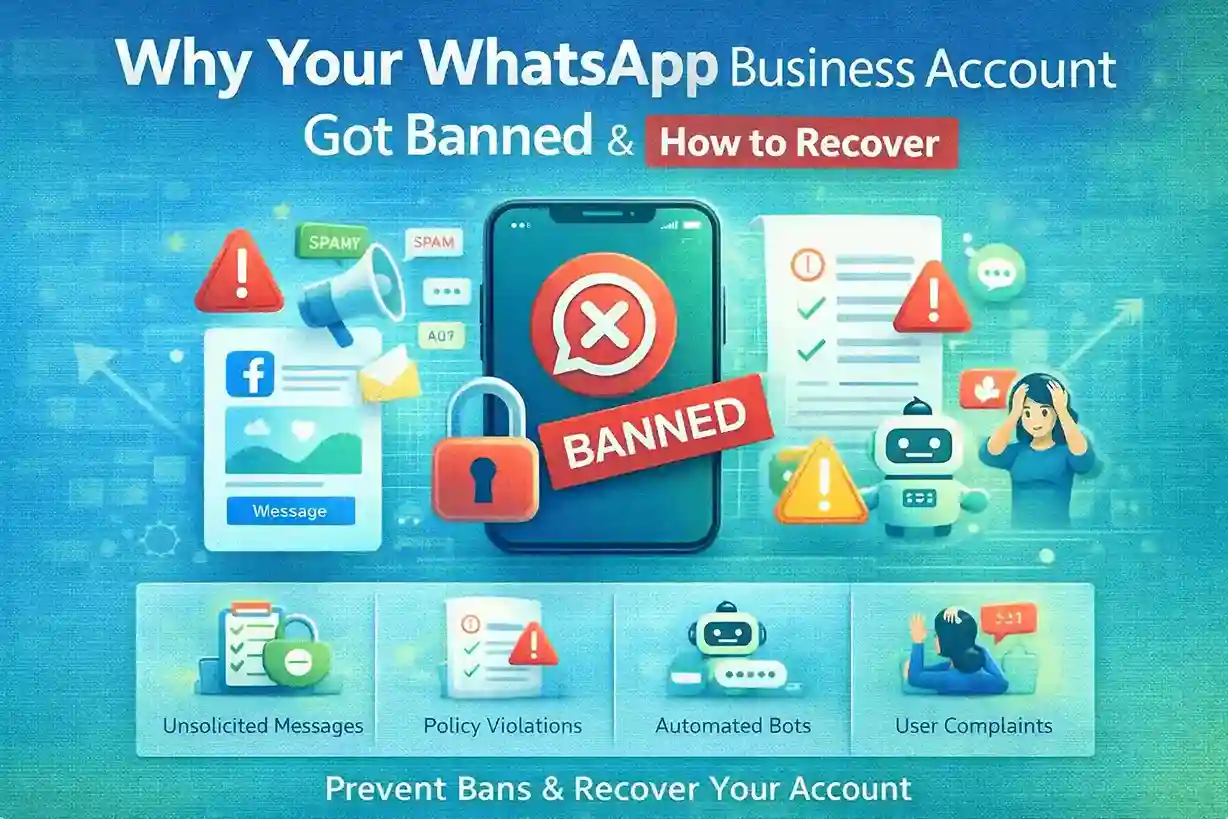
Why WhatsApp Business Accounts Get Banned
WhatsApp carefully protects users from spam, scams, and harmful content. When a business account violates Meta’s policies or receives repeated user complaints, Meta may take action — including temporary restrictions or permanent bans.
Here are the most common reasons:
1. Sending Unsolicited Messages (Spam)
If you send bulk messages without:
• User opt-in
• Clear consent
• Proper template categories
Meta considers this spam, and accounts may face restrictions.
Tip: Always obtain explicit consent and use approved templates for marketing.
2. Repeated User Blocks or Reports
When customers block your number or report messages as spam, Meta flags your account. A high block/report ratio signals low message quality, leading to:
• Reduced message send limits• Temporary restrictions
• Permanent ban
3. Policy Violations (WhatsApp Terms)
Common policy violations include:
• Promotional content in non-marketing templates• False or misleading claims
• Hate speech, adult content, illegal offers
• Unauthorized URLs or tracking links
Meta explicitly prohibits these in its WhatsApp Business Policy.
4. Unapproved Automation Tools
Using unofficial or cracked WhatsApp tools leads to:
• Policy violations• Security risks
• Immediate account ban
Only use official WhatsApp API providers (Meta-approved BSPs).
5. Incorrect Template Usage
If you submit messages in the wrong category (e.g., using marketing templates for transactional updates), Meta rejects templates and may restrict sending.
6. Sudden High-Volume Messaging
Abrupt spikes in messaging volume (e.g., sending thousands of unverified templates overnight) trigger Meta’s anti-spam filters.
What Happens When Your Account Is Banned
Depending on violation severity, Meta may:
• Issue warnings• Restrict messaging ability
• Block certain features
• Temporarily suspend account
• Permanently ban the number
You may see errors like:
“This number is no longer allowed to send messages.”
How to Recover Your WhatsApp Business Account
If your account is restricted or banned, these are official steps to recover it:
🔹 1. Check the Ban Notice
Look for:
• Reason code• Suspension duration
• Appeal instructions
These help you identify the root cause.
🔹 2. Collect Supporting Documentation
Depending on the issue, prepare:
• Business registration documents• Privacy policy link
• Proof of consent collected
• Template usage logs
🔹 3. Submit an Appeal via Meta Business Manager
Steps:
1. Log into Meta Business Manager
2. Navigate to Account Quality / Support Inbox
3. Click Appeal Restriction
4. Explain clearly + attach supporting docs
5. Await response (usually 24–72 hours)
Tip: Be professional, concise, and honest in your appeal.
🔹 4. Contact Your WhatsApp BSP Support Team
If you use a WhatsApp Business Solution Provider (BSP), contact their support team immediately. They often help escalate cases with Meta.
🔹 5. Follow Up Persistently
If Meta asks for more info, provide it promptly. Avoid repeated appeals without new evidence — that can worsen the situation
Preventing Future Bans (Best Practices)
✔ Obtain and Store Explicit Opt-Ins
Use:
• Web forms• Click-to-WhatsApp ads
• Radio/TV opt-ins
• Purchase checkboxes
Ensure clear language:
“I agree to receive WhatsApp messages.”
✔ Use Only Approved Message Templates
Templates must:
• Be appropriately categorized• Avoid promotional language in non-marketing types
• Use variables correctly ({{1}}, {{2}})
✔ Respect 24-Hour Messaging Window
After user message, you have a 24-hour free messaging window. Outside it, you must use approved templates.
✔ Monitor Quality Rating
WhatsApp tracks quality as:
• Excellent
• Good
• Low
• Poor
Low quality leads to restrictions.
✔ Avoid High-Volume Bursts
Use throttling:
• Limit mass sends daily• Segment audiences
• Schedule sends in waves
Counclusion
Why WhatsApp Business Accounts Get Banned
WhatsApp carefully protects users from spam, scams, and
harmful content. When a business account violates Meta’s policies or receives
repeated user complaints, Meta may take action — including temporary
restrictions or permanent bans.
Here are the most common reasons:
1. Sending Unsolicited Messages (Spam)
If you send bulk messages without:
• User opt-in
• Clear consent
• Proper template categories
Meta considers this spam, and accounts may face
restrictions.
Tip: Always obtain explicit consent and use
approved templates for marketing.
2. Repeated User Blocks or Reports
When customers block your number or report messages as spam,
Meta flags your account. A high block/report ratio signals low message quality,
leading to:
• Reduced message send limits
• Temporary restrictions
• Permanent ban
3. Policy Violations (WhatsApp Terms)
Common policy violations include:
• Promotional content in non-marketing templates
• False or misleading claims
• Hate speech, adult content, illegal offers
• Unauthorized URLs or tracking links
Meta explicitly prohibits these in its WhatsApp
Business Policy.
4. Unapproved Automation Tools
Using unofficial or cracked WhatsApp tools leads to:
• Policy violations
• Security risks
• Immediate account ban
Only use official WhatsApp API providers (Meta-approved
BSPs).
5. Incorrect Template Usage
If you submit messages in the wrong category (e.g., using
marketing templates for transactional updates), Meta rejects templates and may
restrict sending.
6. Sudden High-Volume Messaging
Abrupt spikes in messaging volume (e.g., sending thousands
of unverified templates overnight) trigger Meta’s anti-spam filters.
What Happens When Your Account Is Banned
Depending on violation severity, Meta may:
• Issue warnings
• Restrict messaging ability
• Block certain features
• Temporarily suspend account
• Permanently ban the number
You may see errors like:
“This number is no longer allowed to send messages.”
How to Recover Your WhatsApp Business Account
If your account is restricted or banned, these are official
steps to recover it:
🔹 1. Check the Ban Notice
Look for:
• Reason code
• Suspension duration
• Appeal instructions
These help you identify the root cause.
🔹 2. Collect Supporting
Documentation
Depending on the issue, prepare:
• Business registration documents
• Privacy policy link
• Proof of consent collected
• Template usage logs
🔹 3. Submit an Appeal via
Meta Business Manager
Steps:
1. Log into Meta Business Manager
2. Navigate to Account Quality / Support Inbox
3. Click Appeal Restriction
4. Explain clearly + attach supporting docs
5. Await response (usually 24–72 hours)
Tip: Be professional, concise, and honest in
your appeal.
🔹 4. Contact Your
WhatsApp BSP Support Team
If you use a WhatsApp Business Solution Provider (BSP),
contact their support team immediately. They often help escalate cases with
Meta.
🔹 5. Follow Up
Persistently
If Meta asks for more info, provide it promptly. Avoid
repeated appeals without new evidence — that can worsen the situation
Preventing Future Bans (Best Practices)
✔ Obtain and Store Explicit
Opt-Ins
Use:
• Web forms
• Click-to-WhatsApp ads
• Radio/TV opt-ins
• Purchase checkboxes
Ensure clear language:
“I agree to receive WhatsApp messages.”
✔ Use Only Approved Message
Templates
Templates must:
• Be appropriately categorized
• Avoid promotional language in non-marketing types
• Use variables correctly ({{1}}, {{2}})
✔ Respect 24-Hour Messaging
Window
After user message, you have a 24-hour free messaging
window. Outside it, you must use approved templates.
✔ Monitor Quality Rating
WhatsApp tracks quality as:
• Excellent
• Good
• Low
• Poor
Low quality leads to restrictions.
✔ Avoid High-Volume Bursts
Use throttling:
• Limit mass sends daily
• Segment audiences
• Schedule sends in waves
Counclusion