Jun 24, 2026
Automate WhatsApp appointment booking 24/7 — let customers book, get confirmed & reminded, all inside WhatsApp. Set up in 30 minutes. Free trial available.
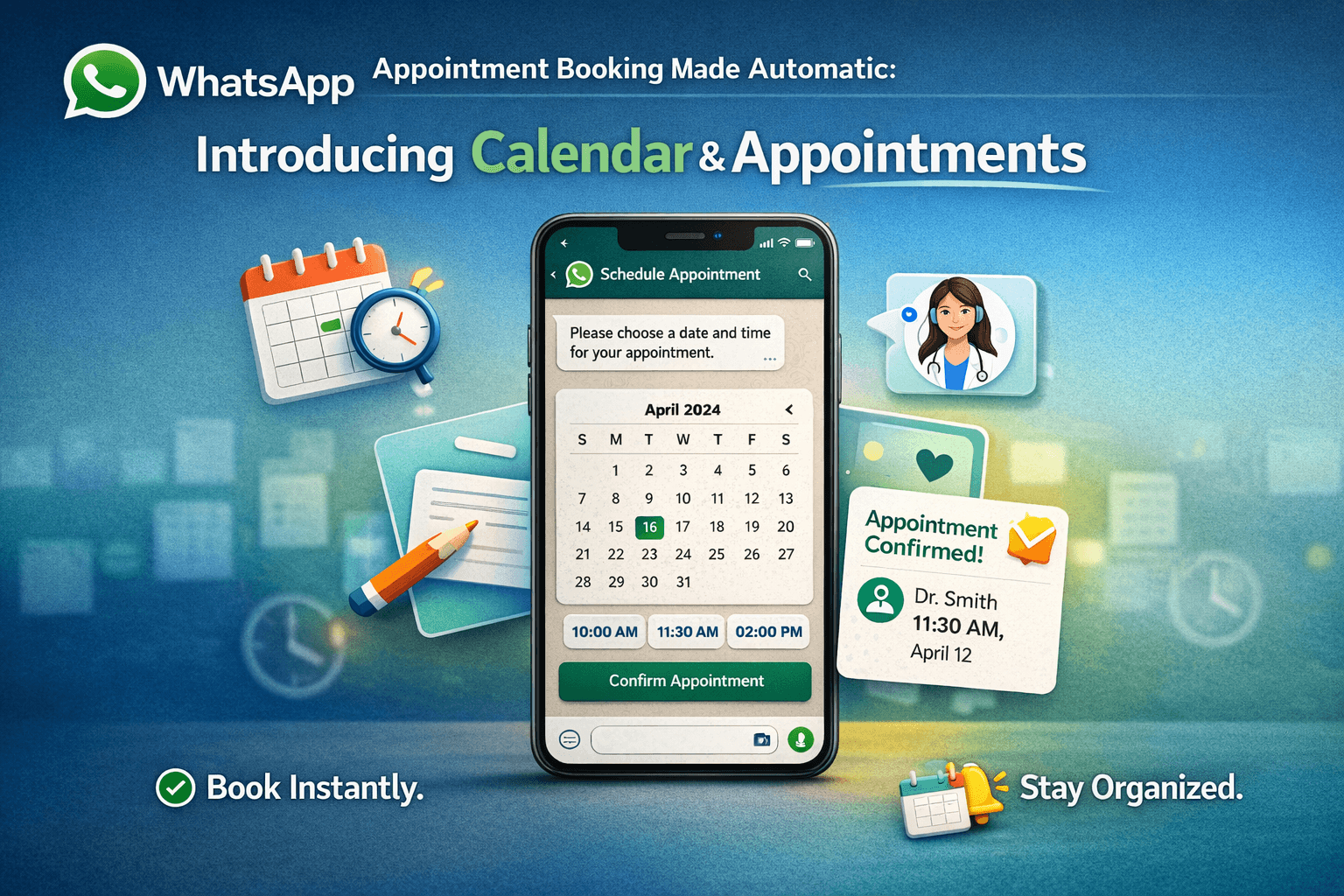
Did you know that 67% of customers prefer messaging over calling to book appointments? And WhatsApp — with its 2 billion+ users — is the most used messaging app in India. Yet most businesses still rely on phone calls, Google Forms, or third-party booking apps that customers have to install separately.
WABA NXCMSG's new Calendar & Appointments feature changes that completely. It lets your customers book appointments directly inside WhatsApp — automatically, 24/7, with instant confirmation and reminders — no human needed.
📌 What this post covers: A complete walkthrough of the WABA NXCMSG Calendar feature — what it does, how to set it up, how to automate bookings via Flow Builder, a full deep-dive into the Calendar Booking Node configuration, and the best industries and use cases to deploy it.
98%
WhatsApp open rate vs 20% email
3x
Faster appointment confirmation vs phone
40%
Reduction in no-shows with WhatsApp reminders
24/7
Automated booking — no staff needed
What Is the WABA NXCMSG Calendar & Appointments Feature?
The Calendar & Appointments feature inside WABA NXCMSG is a fully integrated appointment scheduling system connected directly to your WhatsApp Business number. It lets you:
Create multiple calendars for different services or teams
Set business hours, slot durations, and buffer times
Let the Flow Builder bot automatically ask customers for their details and book a slot
Send automatic WhatsApp reminders before appointments
Manage all bookings from a clean dashboard (month, week, day, or list view)
Book appointments manually on behalf of customers with one click
💡
Unlike Calendly or Bookly — NXCMSG Calendar does not send customers to an external website. The entire booking happens inside WhatsApp, through a conversational chatbot. No app download. No form fill. Just a WhatsApp chat.
The Calendar & Appointments Dashboard — Everything at a Glance
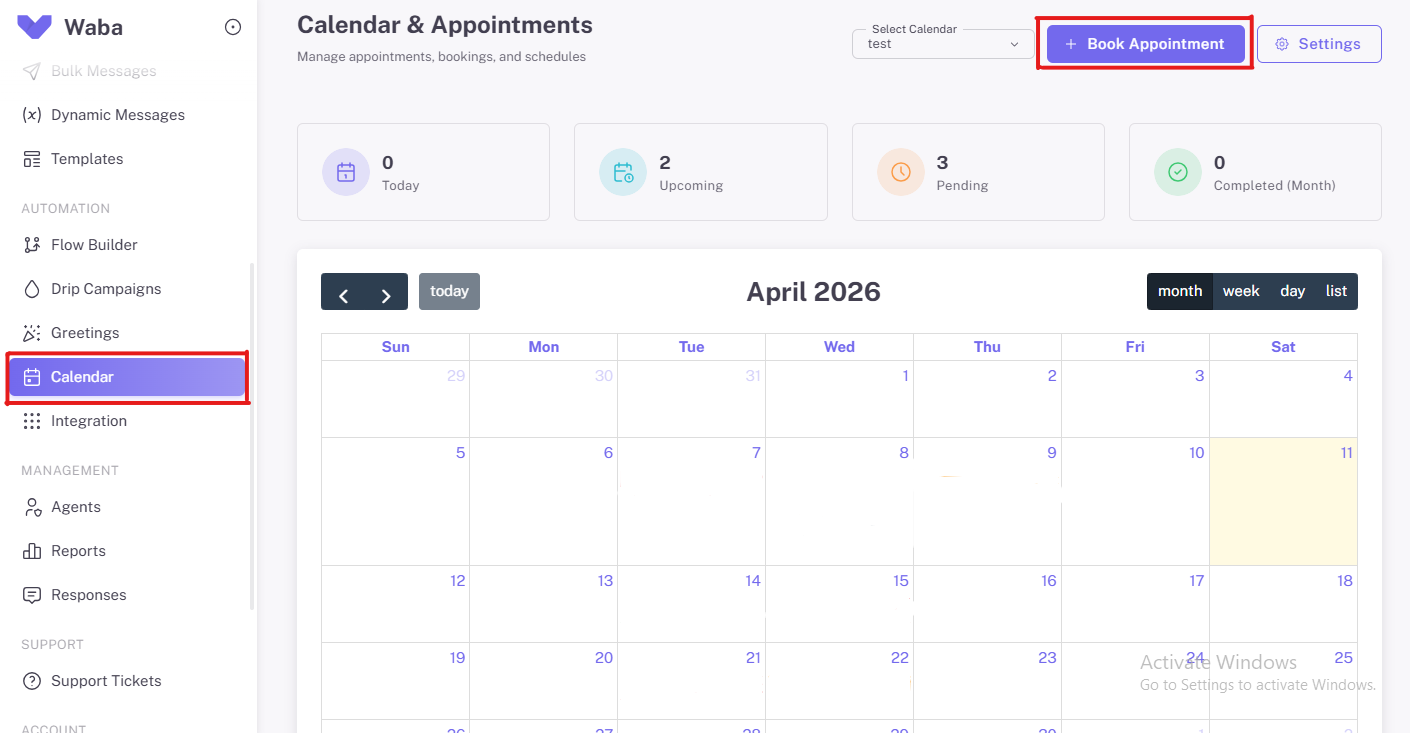
Go to NXCMSG → Calendar to open the appointments dashboard. Here's what you see:
📸 DASHBOARD OVERVIEW
Today — Number of appointments scheduled for today
Upcoming — All future confirmed appointments
Pending — Appointments awaiting confirmation
Completed (Month) — Total completed this month
Full calendar view — switch between Month / Week / Day / List
Select Calendar dropdown — manage multiple service calendars
+ Book Appointment button — manually book for a customer
Settings button — configure calendar rules and templates
Manual Booking — Book Appointment on Behalf of a Customer
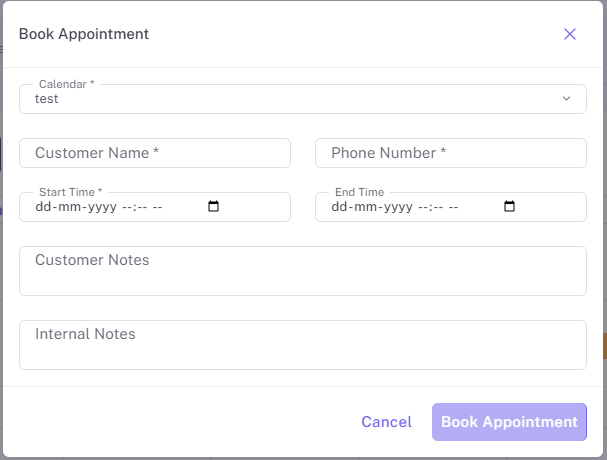
Click the + Book Appointment button (top right) to open the booking form:
ℹ️
Once you click Book Appointment, NXCMSG automatically sends a WhatsApp confirmation message to the customer's phone using the template linked to that calendar — with the appointment date, time, and any customer notes.
How to Create a WhatsApp Appointment Calendar — Step-by-Step
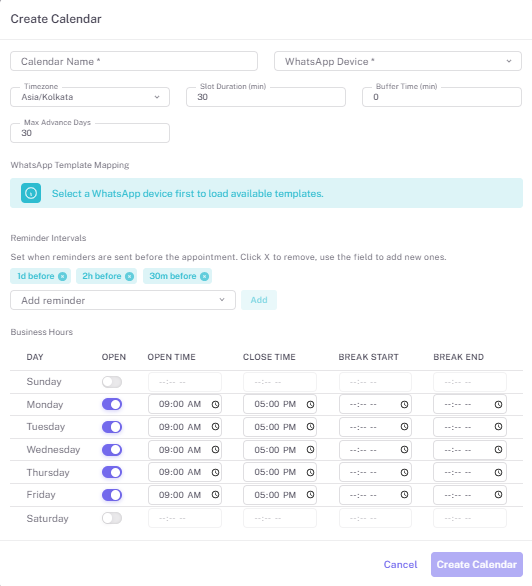
Go to Calendar → Settings to create and configure your calendars.
1
Open Calendar Settings
Go to Calendar → Settings. Click+ New Calendarto create one.
2
Enter Calendar Name & Select WhatsApp Device
Give your calendar a clear name (e.g., "Free Demo", "Doctor Consultation"). Select the WhatsApp device this calendar will use for sending messages.
3
Set Timezone, Slot Duration & Buffer Time
Choose your timezone (e.g., Asia/Kolkata). SetSlot Durationin minutes (10, 15, 30, 60). SetBuffer Time— gap between appointments.
4
Set Max Advance Days
Set how far ahead customers can book (e.g., 30 days) to prevent scheduling issues.
5
Map a WhatsApp Template
Select your WhatsApp device to load available templates. Map your confirmation and reminder templates to this calendar.
6
Configure Reminder Intervals
Set when automatic WhatsApp reminders are sent:1 day before,2 hours before,30 minutes before. Add or remove intervals as needed.
7
Set Business Hours
Toggle each day ON/OFF. Set Open Time and Close Time. Optionally add Break Start and Break End for lunch. Customers cannot book outside these hours.
8
Click Create Calendar
Your calendar is now live and can be assigned to Flow Builder bots for fully automated WhatsApp bookings.
✅
Pro Tip: Create separate calendars for different services — "Sales Demo", "Technical Support", "Doctor Slot A", "Home Visit" — each with its own business hours, slot duration, WhatsApp template, and reminder schedule.
Automate WhatsApp Appointment Booking with Flow Builder
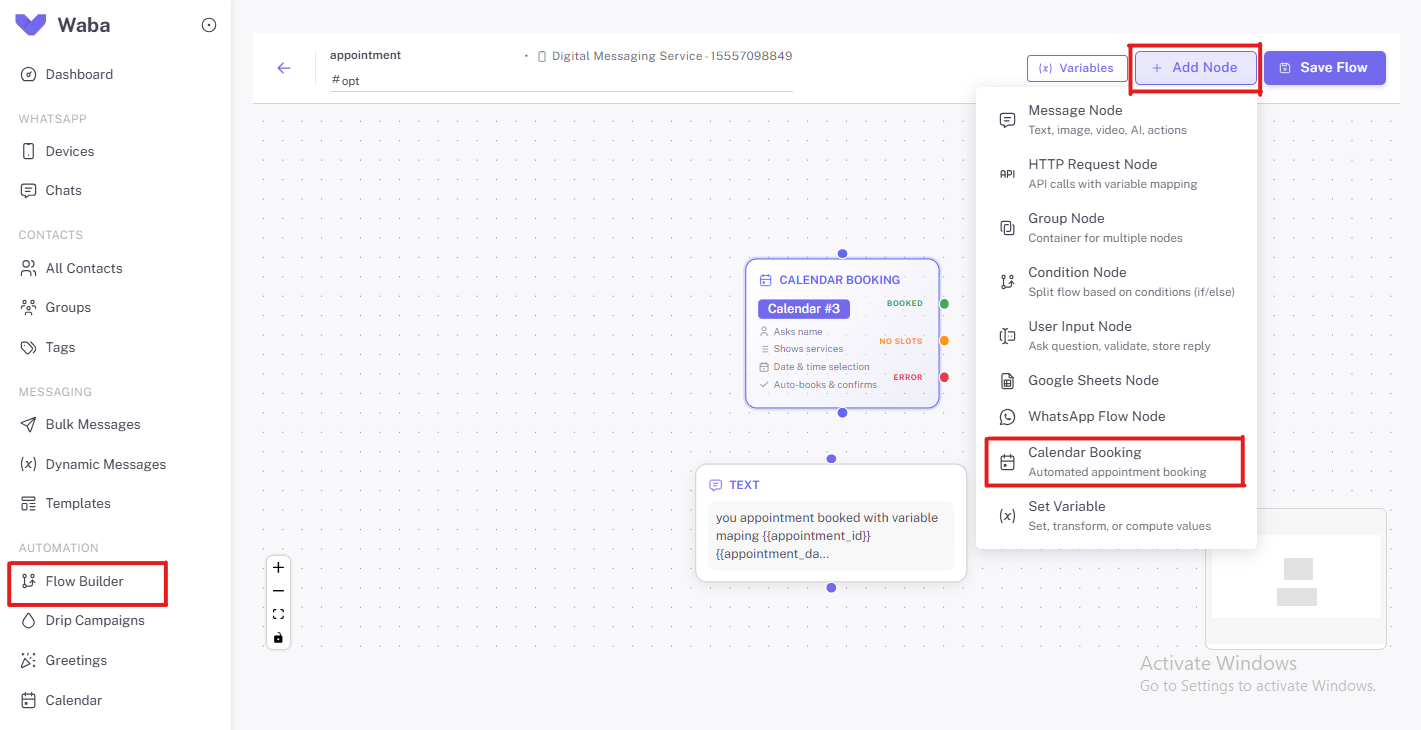
The most powerful use of the Calendar feature is combining it with NXCMSG Flow Builder. Inside Flow Builder, click + Add Node and select Calendar Booking.
📅 CALENDAR BOOKINGAUTOMATED
- 👤 Asks customer name
- 🗂️ Shows available services
- 📆 Date & time selection
- ✅Auto-books & sends confirmation
✓ BOOKED⚠ NO SLOTS✕ ERROR
How the Automated Booking Flow Works (Customer View)
1
Customer sends a keyword (e.g., "Book" or "#opt")
The Flow Builder trigger activates. The bot responds instantly — 24/7, even at midnight.
2
Bot asks for the customer's name
The Calendar Booking node collects the customer's name automatically via WhatsApp conversation.
3
Bot shows available services
If you have multiple calendars/services, the bot displays them as options for the customer to choose.
4
Customer selects date & time slot
The bot shows available time slots based on your business hours and existing bookings. Customer picks their preferred slot.
5
Booking auto-confirmed — WhatsApp message sent instantly
The appointment is created in your NXCMSG calendar. The customer receives an instant WhatsApp confirmation with their appointment ID and details.
6
Automatic reminders sent before the appointment
Based on your reminder settings (e.g., 1 day before, 2 hours before, 30 minutes before), WhatsApp reminder messages are sent automatically.
⚡
Sample confirmation message the customer receives:
"Hi Rahul! ✅ Your appointment has been booked.
📅 Date: 15 April 2026 🕐 Time: 11:00 AM – 11:30 AM
📋 Booking ID: #APT-2847
We'll send you a reminder 2 hours before. See you then!"
Calendar Feature Settings — Full Configuration Guide
Reminder Intervals — Never Let a Customer Forget
| Reminder | When Sent | Best For |
|---|---|---|
| 1 Day Before | 24 hours before appointment | All appointment types |
| 2 Hours Before | 2 hours before appointment | In-person visits, demos |
| 30 Minutes Before | 30 min before appointment | Online calls, video meetings |
| Custom Interval | Any time you set | Long appointments, medical |
Slot Duration & Buffer Time
| Setting | What It Does | Example |
|---|---|---|
| Slot Duration | Length of each appointment | 30 min = slots at 9:00, 9:30, 10:00... |
| Buffer Time | Gap between appointments | 10 min buffer = next slot at 9:40 after 9:00–9:30 |
| Max Advance Days | How far ahead customers can book | 30 days = can book up to 30 days in future |
Calendar vs Manual Booking vs Third-Party Apps — Comparison
| Feature | NXCMSG Calendar | Phone Booking | Calendly / Google Forms |
|---|---|---|---|
| Booking channel | WhatsApp (no app needed) | Voice call | External website/link |
| 24/7 automated booking | Yes | No (needs staff) | Yes (but separate app) |
| Auto WhatsApp confirmation | Yes — instant | No | Email only |
| WhatsApp reminders | Yes — multi-interval | No | Email only |
| Flow Builder chatbot | Yes | No | No |
| Multiple calendars | Yes | No | Paid only |
| No-show rate reduction | Up to 40% | Low | Medium |
| Customer effort | Zero (just chat) | High (dial, wait, hold) | Medium (open link, fill form) |
Who Should Use WhatsApp Appointment Booking?
Healthcare & Clinics
Doctor appointments, lab tests, health checkups — booked via WhatsApp, with pre-visit reminders.
B2B Sales Teams
Auto-book product demos, discovery calls, and follow-up meetings directly from WhatsApp leads.
Education & Coaching
Book counselling sessions, trial classes, and parent-teacher meetings via WhatsApp chatbot.
Service Businesses
Home appliance repair, AC servicing — customers self-book a technician slot.
Salons & Spas
Hair appointments, beauty treatments, massage sessions — booked and confirmed on WhatsApp.
Real Estate
Site visits, property tours, and agent meetings — automated booking with location reminders.
Automotive
Car service bookings, test drives, insurance renewals — all automated via WhatsApp.
Finance & Banking
Loan consultations, investment advisory meetings, account opening — fully automated.
Interviews & HR
HR teams scheduling candidate interviews, onboarding sessions, and training slots.
How to Set Up a Calendar Booking Flow in Flow Builder
1
Go to Flow Builder
Open Automation → Flow Builder. Click+ New Flow. Name it and select your WhatsApp device.
2
Set the Trigger Keyword
Add a trigger keyword like "Book", "Appointment", "Schedule", or "#opt". When a customer sends this, the flow activates automatically.
3
Add a Welcome Message Node
Add a Message Node to greet the customer: "Hi! 👋 I can help you book an appointment. Let me check available slots for you."
4
Add the Calendar Booking Node
Click+ Add Node → Calendar Booking. Select your calendar. The node automatically handles name, service, date & time selection.
5
Connect the 3 Outcome Branches
BOOKED→ Text Node: "Your appointment is confirmed! 🎉 ID: {{appointment_id}} on {{appointment_date}}"
NO SLOTS→ Text Node: "Sorry, no slots available. Want us to notify you?"
ERROR→ Text Node: "Something went wrong. Our team will contact you shortly."
6
Save & Activate the Flow
ClickSave Flow. Toggle to Active. Your WhatsApp number is now a 24/7 automated booking system.
🚀
Advanced Tip: After the BOOKED branch, add a Set Variable node to save {{appointment_id}} and {{appointment_date}}, then trigger a Drip Campaign for post-appointment follow-ups like review requests or next booking nudges.
WhatsApp Template Messages for Appointment Booking
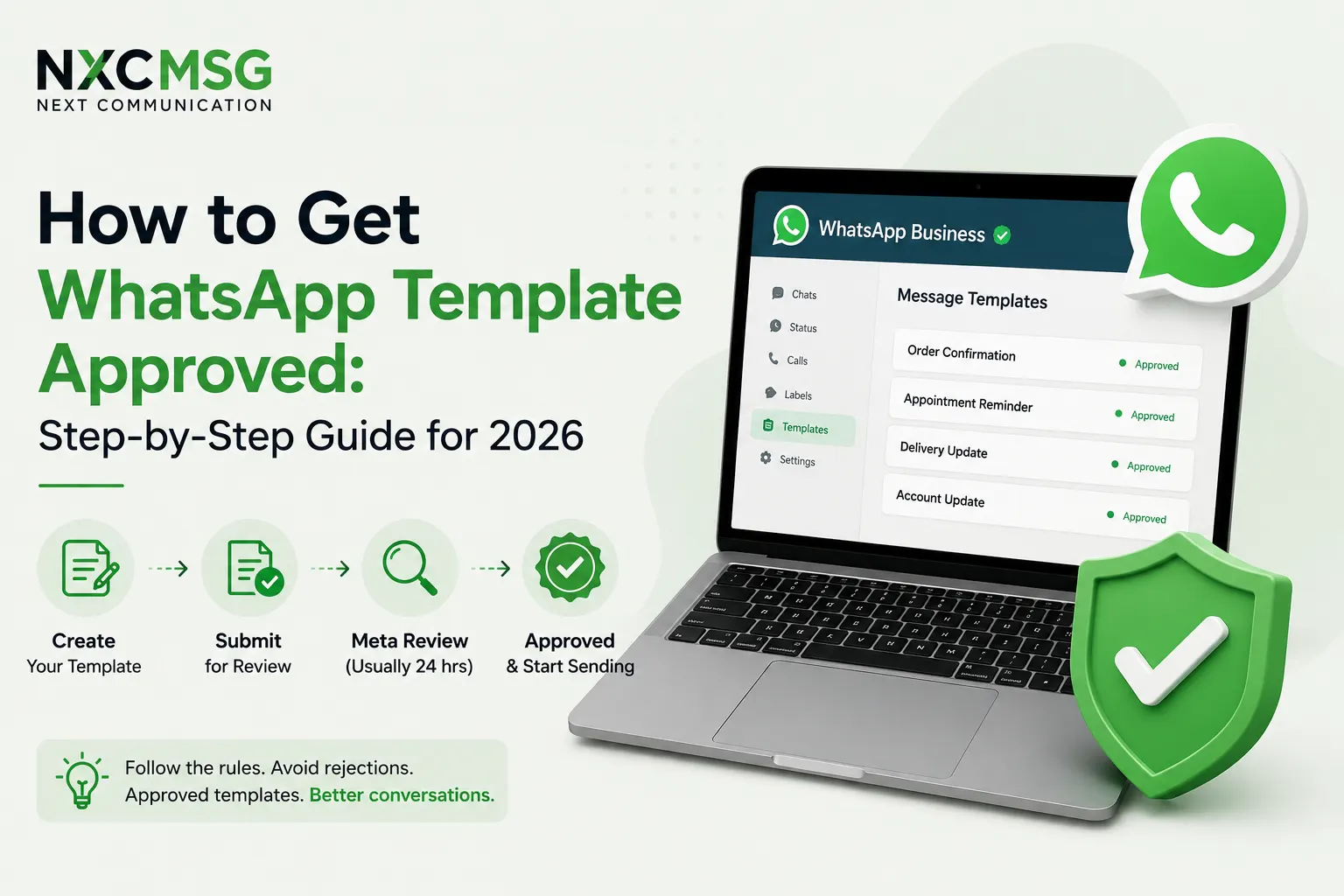
To send appointment confirmations and reminders, you need Meta-approved WhatsApp templates.
Template 1: Booking Confirmation
📋 SUGGESTED TEMPLATE — CATEGORY: UTILITY
Hi {{1}}, your appointment has been confirmed! ✅
📅 Date & Time: {{2}}
📋 Booking ID: {{3}}
📍 Location / Meeting Link: {{4}}
Reply CANCEL to cancel your appointment.
Template 2: Appointment Reminder
📋 SUGGESTED TEMPLATE — CATEGORY: UTILITY
Hi {{1}}, this is a reminder for your appointment tomorrow.
📅 Date & Time: {{2}}
📋 Booking ID: {{3}}
Please be ready 5 minutes before your scheduled time.
Reply RESCHEDULE if you need to change the timing.
ℹ️
Map these templates to your calendar in Calendar Settings → WhatsApp Template Mapping. NXCMSG will automatically fill in the variables with actual appointment data when sending.
Key Benefits of WhatsApp Appointment Booking with NXCMSG
Deep Dive: Calendar Booking Node — Complete Configuration Guide
🆕 NEW SECTION · Added April 2026
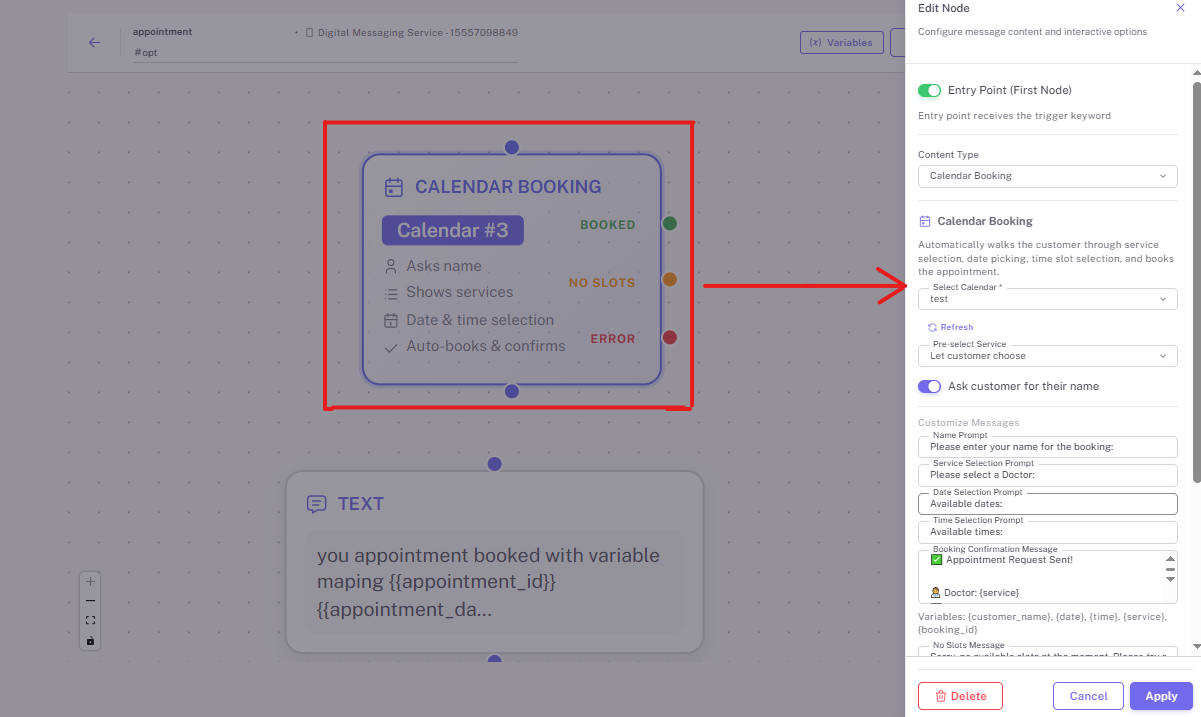
The Calendar Booking Node is the engine that powers your entire automated WhatsApp appointment system inside NXCMSG Flow Builder. Here is a complete breakdown of every setting, variable, and output — exactly as seen in the node editor.
🔗
View and edit a live example of this flow here: Flow Builder → Calendar Booking Flow (Live Example)
What the Calendar Booking Node Does — Automatically
When added to a flow and a customer triggers the keyword, this node automatically handles the entire booking conversation with zero human involvement:
📅 CALENDAR BOOKINGENTRY POINT
- 👤Asks customer for their name
- 🗂️ Shows available services to choose from
- 📆 Shows available dates for the selected service
- 🕐 Shows available time slots for the chosen date
- ✅ Auto-books the slot and sends confirmation
✓ BOOKED⚠ NO SLOTS✕ ERROR
Part 1 — Entry Point & Content Type
| Setting | Value | What It Does |
|---|---|---|
| Entry Point (First Node) | Toggle ON | Makes this the first node that activates when a customer sends the trigger keyword (e.g., "#opt", "Book"). The entire booking flow starts here automatically. |
| Content Type | Calendar Booking | Tells the node to run the full automated booking sequence — service selection → date → time → confirmation — without any manual steps. |
Part 2 — Calendar & Service Configuration
| Setting | Value / Option | Explanation |
|---|---|---|
| Select Calendar | Dropdown (e.g., "test") | Choose which of your calendars this node books into. Each calendar has its own business hours, slot duration, and WhatsApp templates. Click Refresh if your calendar list is not loading after connecting a new WhatsApp device. |
| Pre-select Service | Let customer choose | Set to "Let customer choose" to display all available services and let the customer pick. Or choose a specific service to skip the service selection step entirely — useful for single-service businesses like clinics with one specialty. |
| Ask customer for their name | Toggle ON / OFF | When ON, the bot asks the customer to type their name before proceeding. The name is captured as {customer_name} and used in confirmation messages and all downstream nodes. |
Part 3 — Customize Messages (All 5 Prompt Fields)
Every message the bot sends during the booking conversation is fully customisable. Here are all five prompts visible in the node editor, with the default text and when each fires:
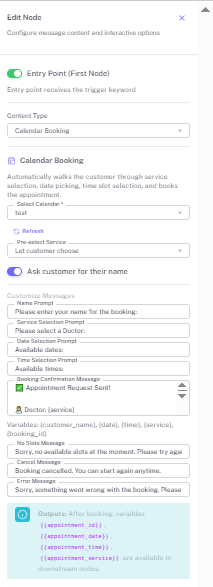
NAME PROMPT
"Please enter your name for the booking:"
Sent when the bot asks for the customer's name. Appears first in the conversation if "Ask customer for their name" is toggled ON.
SERVICE SELECTION PROMPT
"Please select a Doctor:"
Sent when showing available services/doctors to choose from. Customise this to match your business — "Please select a Service:", "Choose your stylist:", "Select a consultant:".
DATE SELECTION PROMPT
"Available dates:"
Sent when presenting available booking dates based on your calendar's business hours and existing appointments.
TIME SELECTION PROMPT
"Available times:"
Sent when showing available time slots for the date chosen by the customer. Slots are generated based on your Slot Duration and Buffer Time settings.
BOOKING CONFIRMATION MESSAGE
✅ Appointment Request Sent!
🐕 Doctor: {service}
🐕 Doctor: {service}
Sent immediately after the appointment is successfully booked. Use variables like
{service}, {date}, {time}, and {booking_id} inside this message for dynamic personalisation.✏️
Customise for your industry: Change "Please select a Doctor:" to match your business — "Choose your service:", "Select your consultant:", "Pick a stylist:". The exact text appears in the customer's WhatsApp chat as you type it.
Part 4 — Edge Case Messages
| Message | Default Text | When It Fires |
|---|---|---|
| No Slots Message | "Sorry, no available slots at the moment. Please try again later." | Fires through the NO SLOTS output branch when all slots for the selected service/date are fully booked |
| Cancel Message | "Booking cancelled. You can start again anytime." | Fires when the customer cancels the booking process mid-conversation |
| Error Message | "Sorry, something went wrong with the booking. Please try again." | Fires through the ERROR output branch when a technical issue occurs during the booking process |
Part 5 — Variables Available Inside the Node
During the booking conversation the node automatically captures and stores these variables. You can use all of them inside the Booking Confirmation Message field and in any downstream node:
{customer_name}The name typed by the customer when the Name Prompt appears
{date}The appointment date selected by the customer from available dates
{time}The time slot selected by the customer from available times
{service}The service or doctor selected from the service selection list
{booking_id}Unique booking reference ID generated after a successful booking
Part 6 — Output Variables (Available in All Downstream Nodes)
After a successful booking through the BOOKED branch, these variables become available in all downstream nodes — Text nodes, HTTP Request nodes, Set Variable nodes, Drip Campaigns, and more:
⚡ OUTPUT VARIABLES — AVAILABLE AFTER SUCCESSFUL BOOKING
{{appointment_id}}Unique appointment reference number — share with customer for easy reference and cancellations{{appointment_date}}Full date of the booked appointment in your calendar{{appointment_time}}Booked time slot — start time of the appointment{{appointment_services}}The service or doctor that was selected during the booking conversation💡
How to use output variables in your Text Node:
After the BOOKED branch, add a Text Node with:
"✅ Your appointment is confirmed!
Booking ID: {{appointment_id}}
Date: {{appointment_date}}
Time: {{appointment_time}}
Service: {{appointment_services}}
We'll send you a reminder before your appointment. See you then! 🎉"
Part 7 — The 3 Output Branches Explained
| Branch | Colour | When It Fires | Recommended Connection |
|---|---|---|---|
| BOOKED ✓ | 🟢 Green dot | Customer completes the full booking flow and a slot is confirmed successfully | Text Node with confirmation message using {{appointment_id}}, {{appointment_date}}, {{appointment_time}} |
| NO SLOTS ⚠ | 🟡 Orange dot | No available slots for the selected service and date combination | Text Node: "No slots available right now. Would you like to be notified when a slot opens?" → Connect to Drip Campaign |
| ERROR ✕ | 🔴 Red dot | A technical error occurs during the booking (e.g., calendar unavailable, API failure) | Text Node: "Something went wrong. Our team will contact you shortly." → Route to human agent via Agents module |
Live Flow Example — See the Full Setup in Action
The following is what the live Calendar Booking flow looks like in the Flow Builder (as seen in the screenshots):
🔧 LIVE FLOW STRUCTURE — appointment flow (trigger: #opt)
Node 1: CALENDAR BOOKING — Calendar #3 → Entry Point ON → Content Type: Calendar Booking
BOOKED branch → TEXT node: "you appointment booked with variable maping {{appointment_id}} {{appointment_date}} {{appointment_time}} {{appointment_services}}"
NO SLOTS branch → Connect to your "no slots available" message node
ERROR branch → Connect to your error / agent handover message node
👉 Open and explore this live flow: waba.nxccontrols.in → Flow Builder → Calendar Booking Flow
You can duplicate this flow, swap in your own calendar, update the prompt messages, and go live in minutes.
FAQ — WhatsApp Appointment Booking
Start Booking Appointments via WhatsApp — Automatically
Set up your WhatsApp Calendar in under 30 minutes. 14-day free trial — no credit card required. Our team helps you create the flow and templates.
Conclusion — WhatsApp Is Now Your Booking System
The WABA NXCMSG Calendar & Appointments feature — combined with the powerful Calendar Booking Node in Flow Builder — turns your WhatsApp Business number into a fully automated booking engine. Your customers book appointments in the app they already use every day. Your team gets a clean dashboard to manage everything. And your no-show rate drops thanks to automatic reminders.
Whether you're a clinic managing 100 patient slots a day, a sales team booking product demos, or a home service business scheduling technician visits — this feature is built for you.
The setup takes under 30 minutes. The bot works 24/7. Customise every prompt, map every variable, and go live today.
👉 Get started at waba.nxccontrols.in/pricing — or WhatsApp us directly at +91 98079 80778.