Jun 24, 2026
Stop letting people know when you've read their messages. Learn how to turn off blue ticks on WhatsApp in 30 seconds with our step-by-step guide for Android and iPhone.
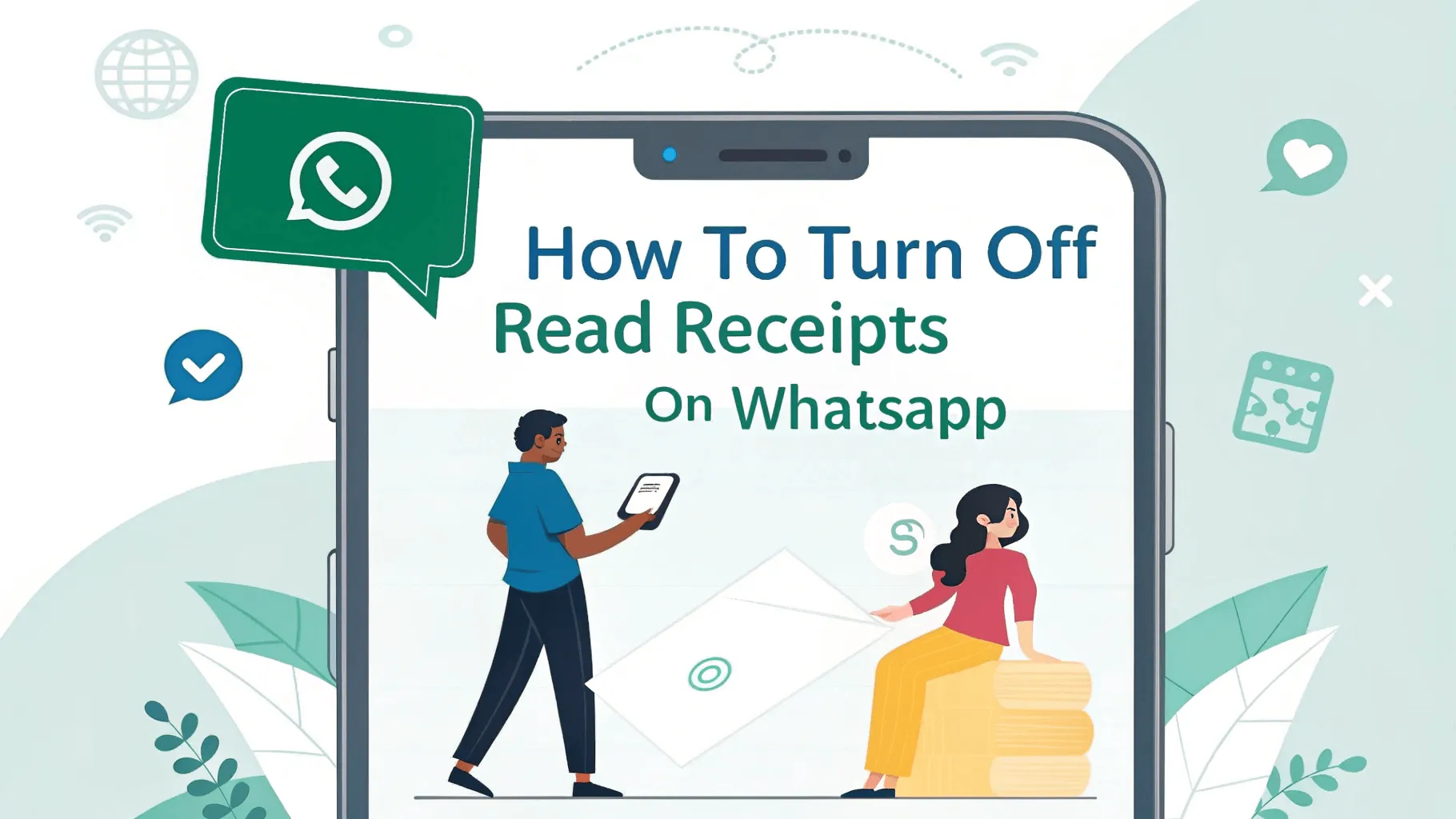
How to Turn Off Read Receipts on WhatsApp (Disable Blue Ticks 2026)
Tired of feeling pressured to reply the moment you read a message on WhatsApp?
Those blue double check marks (read receipts) tell senders exactly when you’ve opened their message.
The good news? You can turn them off.
In this guide, you’ll learn:
How to disable blue ticks on WhatsApp (Android & iPhone)
What each WhatsApp check mark color means
Important exceptions you should know
Privacy trade-offs and limitations
Time needed: 30 seconds
Works on: Android, iPhone, WhatsApp Web

What Are WhatsApp Read Receipts?
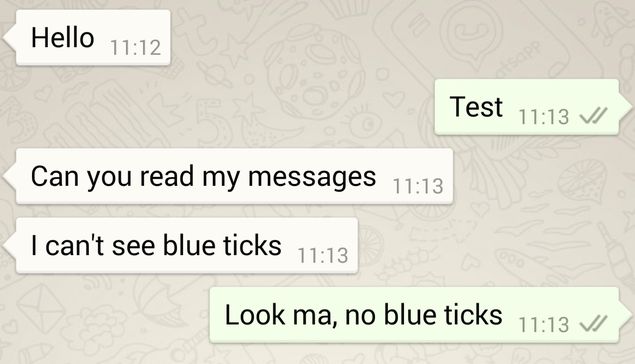
Read receipts are the blue double check marks (✓✓) that appear when you open and read a message. They notify the sender that their message has been seen.
Why people disable read receipts
Read messages without pressure to reply immediately
Maintain privacy about activity status
Avoid “seen but not replied” situations
Control response timing
WhatsApp Check Marks Explained (All Colors)
Before turning off read receipts, it’s important to understand what each check mark means.
✓ Single Grey Check Mark
Meaning: Message sent successfully
Status: Message has not reached the recipient yet
Possible reasons:
Recipient is offline
Poor internet connection
You may be blocked (not always)
✓✓ Double Grey Check Marks
Meaning: Message delivered
Status: Message reached the recipient’s phone but hasn’t been opened
✓✓ Double Blue Check Marks
Meaning: Message read
Status: Recipient opened the chat and saw your message
This is what you can disable.
How to Turn Off Blue Ticks on WhatsApp (Step-by-Step)
On Android
Open WhatsApp
Tap the three dots in the top-right corner
Select Settings
Tap Privacy
Scroll to Read receipts
Toggle it OFF
Blue ticks are now disabled.
On iPhone (iOS)
Open WhatsApp
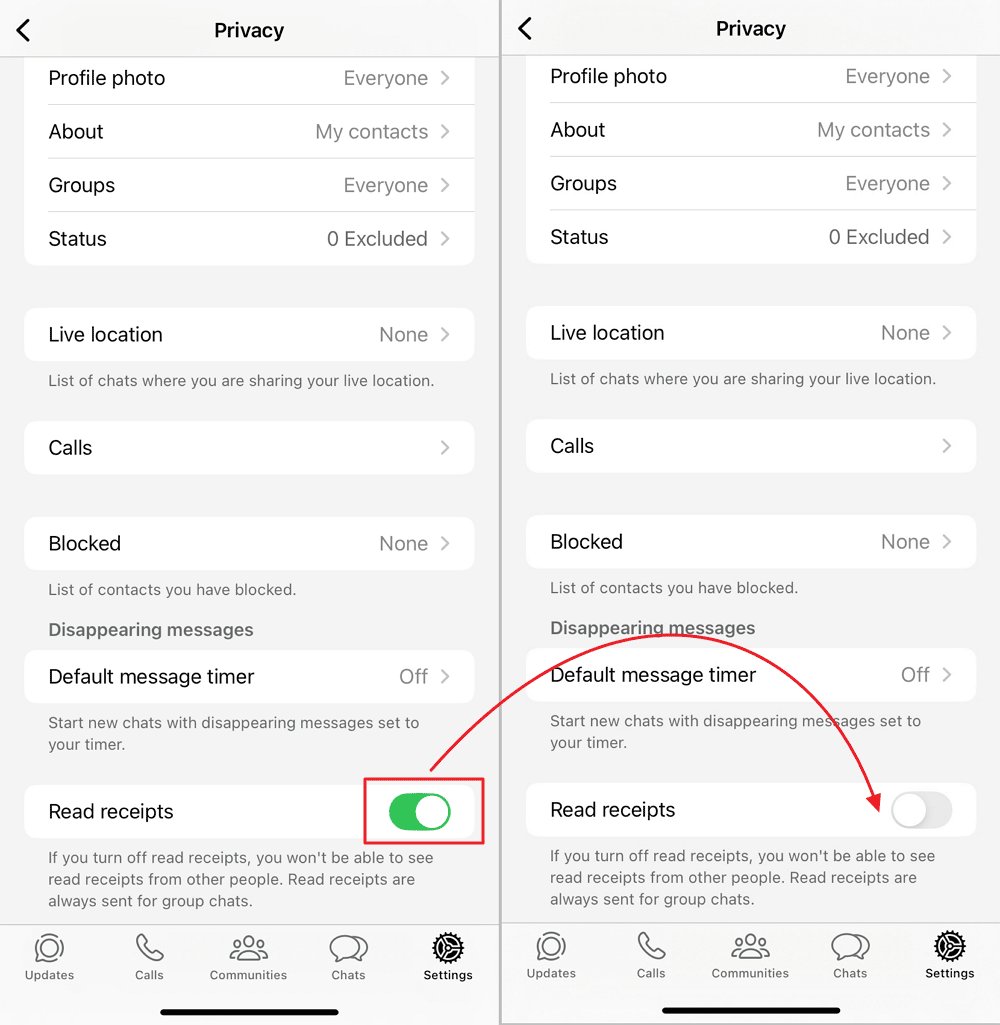
Tap Settings (bottom-right corner)
Tap Privacy
Find Read receipts
Toggle it OFF
Your read receipts are now hidden.
On WhatsApp Web
You cannot turn off read receipts directly on WhatsApp Web.
You must change the setting on your mobile phone, and it will automatically sync to WhatsApp Web.
What Happens When You Disable Read Receipts?
What You Gain
Others only see double grey ticks when you read messages
No one knows when you’ve actually opened a chat
More privacy and control over your time
Less pressure to respond instantly
What You Lose
You won’t see blue ticks from others
You can’t tell if someone has read your message
The setting applies to all individual chats
Important Exceptions (When Blue Ticks Still Appear)
Group Chats
Read receipts cannot be disabled in group chats.
Group members will always see when you’ve read messages.
Voice Messages
When you listen to a voice note, the blue microphone icon may still appear, indicating it was played.
Status Updates
Read receipts do not affect Status views.
You can still see who viewed your Status, and others can see when you view theirs.
Business Accounts
Some WhatsApp Business accounts may still show read activity for customer service purposes.
Can You Turn Off Read Receipts for One Person Only?
No.
WhatsApp’s read receipt setting is all or nothing.
You cannot disable blue ticks for specific contacts
It applies to all personal chats
Group chats are always excluded
Common Workarounds
Read messages from notification previews
Use Airplane Mode, read the message, then close WhatsApp
Avoid third-party apps (not recommended for security)
Does Turning Off Read Receipts Hide Last Seen?
No. These are separate settings.
To hide your Last Seen
Go to Settings → Privacy
Tap Last seen and online
Choose who can see it
If you hide your Last Seen, you won’t be able to see others’ Last Seen either.
How to Know If Someone Turned Off Read Receipts
You can’t know for sure, but there are signs:
Messages always show double grey ticks
They reply, but ticks never turn blue
The pattern stays consistent
It could also mean:
They haven’t opened the message yet
They read it from notifications
Their internet connection is poor
WhatsApp Privacy Tips Beyond Read Receipts
Profile Privacy
Profile photo → My contacts
About → My contacts
Status → My contacts or selected contacts
Activity Privacy
Turn off read receipts
Hide Last Seen
Hide Online status
Security
Enable two-step verification
Turn on security notifications
Review blocked contacts regularly
Frequently Asked Questions
Can I turn off blue ticks for one person only?
No. WhatsApp does not support selective read receipt settings.
Will someone know I turned off read receipts?
No. There’s no notification. Blue ticks simply stop appearing.
Can I still see “typing…”?
Yes. Typing indicators still work.
Do read receipts work on WhatsApp Web?
Yes. Your mobile setting applies automatically.
Does this save battery or data?
No. It only affects message visibility.
Read Receipts ON vs OFF
Want more privacy → Turn OFF
Need delivery confirmation for work → Keep ON
Casual chats → Turn OFF
Professional communication → Keep ON
Feel reply pressure → Turn OFF
Conclusion
Turning off read receipts on WhatsApp takes less than 30 seconds and gives you full control over when and how you respond. While you lose visibility into others’ read status, the privacy benefits are worth it for most users.
Quick Summary
Open WhatsApp → Settings → Privacy
Turn Read receipts OFF
Remember exceptions (groups, voice notes)
Adjust Last Seen for complete privacy
Take control of your WhatsApp privacy and message on your own terms.