Jul 23, 2026
Learn how to send WhatsApp order notifications from Shopify using Waba NXC Chat & Notifications. This complete 2026 guide helps you automate order confirmations, shipping updates, and customer alerts to boost engagement, improve customer experience, and increase sales.
98%WhatsApp order notification open rate vs 18–22% for Shopify email
15–25%Shopify abandoned cart recovery rate via WhatsApp vs 3–5% email
30 minfrom Shopify app install to first WhatsApp order notification live
70%reduction in “where is my order?” support queries after enabling WhatsApp notifications
Shopify sends order confirmation emails that customers open two days later — if at all. WhatsApp order notifications are opened within 5 minutes, 98% of the time. The Waba NXC Chat & Notifications Shopify app — powered by WABA NXCMSG WhatsApp Business API — connects your Shopify store to WhatsApp in 30 minutes: automatic order processing notifications, order completed/shipped updates, abandoned cart recovery messages, and a WhatsApp chat widget on your storefront. No developer required. Works on all Shopify plans. Trusted by Indian D2C brands, fashion stores, beauty brands, and eCommerce businesses across India.
Why Send Shopify Order Notifications via WhatsApp (Not Email)
Shopify’s default order notification system sends emails — a channel with a 18–22% open rate in India, frequent spam folder issues, and zero two-way conversation capability. Every “Your order has been placed” email that sits unread is a missed opportunity to build trust, reduce support queries, and drive repeat purchases.
WhatsApp order notifications from Shopify change the post-purchase experience completely. The Waba NXC Chat & Notifications Shopify app — powered by WABA NXCMSG WhatsApp Business API — allows Shopify store owners to automatically send WhatsApp messages for every order event: order confirmed, order processing, order shipped, order delivered, and abandoned cart recovery — all triggered automatically by Shopify webhooks with zero manual work.
| Metric | Shopify Email Notifications | Shopify WhatsApp Notifications (Waba NXC App) |
|---|---|---|
| Open rate | 18–22% | 95–98% |
| Read within 5 minutes | ~4% | ~80% |
| Abandoned cart recovery | 3–5% | 15–25% |
| Goes to spam | Frequently (30–40%) | Never — WhatsApp delivery |
| Customer replies possible | ✘ One-way only | ✔ Two-way conversation |
| Support query reduction | Minimal | Up to 70% fewer “where is my order?” calls |
| Chat widget on store | ✘ Not available | ✔ WhatsApp chat widget included |
| Setup time | Built-in but limited | 30 minutes with Waba NXC app |
How to Install the Waba NXC Chat & Notifications Shopify App
The Waba NXC Chat & Notifications app is available on the Shopify App Store at apps.shopify.com/waba-order-notification-app. Installation takes under 2 minutes. You will need a NXCMSG account for your WhatsApp Business API credentials — start your free 14-day trial at waba.nxccontrols.in/pricing.
- Search “Waba NXC” on the Shopify App Store
Go to apps.shopify.com/waba-order-notification-app or search “Waba NXC” in the Shopify App Store. Click Install and approve the requested permissions — the app needs access to orders, customers, and storefront to send automatic Shopify WhatsApp notifications.
🛍️ Available on all Shopify plans including Basic - Get your NXCMSG API credentials
Log into your NXCMSG account at wabav2.nxccontrols.in → Settings → API. Copy your App Key, Auth Key, and WhatsApp number. The Waba API URL is always
💬 Don’t have NXCMSG? Start free 14-day trial at waba.nxccontrols.in/pricinghttps://waba.nxccontrols.in/. Keep these ready for the next step. - Open the app in Shopify Admin → Apps → waba-order-notification-app
After installation, find the app in your Shopify admin under Apps. Click to open “Waba Chat & Notifications.” You’ll see two sections: API Configuration and Template Mapping. Complete both to activate Shopify WhatsApp order notifications.
- Enter API Configuration and save
Fill in the four credential fields — Waba API URL, App Key, Auth Key, WhatsApp Number, and optionally a Test Phone Number for verifying templates before going live. Click Save Credentials. This connects your Shopify store to your NXCMSG WhatsApp Business API account.
- Map templates and go live
In the Template Mapping section, click Refresh Templates to load your NXCMSG-approved templates, then map each template to a Shopify event (Abandoned Cart, Order Processing, Order Completed). Use Send Test to verify each message on your phone. Click Save Templates — your Shopify WhatsApp notifications are now live.
✅ Test with a real Shopify order to confirm end-to-end WhatsApp delivery
🛍️
App Store Link
Install the Waba NXC Chat & Notifications Shopify app directly from: apps.shopify.com/waba-order-notification-app. The app is compatible with all Shopify plans (Basic, Shopify, Advanced, Plus) and takes under 30 minutes to fully configure — no developer or coding required.
Step-by-Step: API Configuration in Shopify Admin
The Waba NXC Chat & Notifications app is configured entirely inside your Shopify admin panel — no external dashboards or developer tools needed. The API Configuration section has five fields that connect your Shopify store to your NXCMSG WhatsApp Business API account:
📸 Shopify Admin — Waba NXC app API Configuration: Waba API URL, App Key, Auth Key, WhatsApp Number, Test Phone Number
- Waba API URL: Always
https://waba.nxccontrols.in/for all NXCMSG customers. This is the base endpoint that connects the Shopify app to your NXCMSG WhatsApp Business API account. - App Key: Your unique NXCMSG application identifier — found in NXCMSG Settings → API. Copy-paste directly; never retype manually.
- Auth Key: Your NXCMSG authentication secret. Stored securely inside Shopify. Authorises the app to send WhatsApp order notifications on behalf of your NXCMSG account.
- WhatsApp Number: The phone number registered on your NXCMSG account — this is the number that sends all Shopify WhatsApp order notifications to customers and appears on your store’s WhatsApp chat widget.
- Test Phone Number: Your personal number for testing. When you click “Send Test” on any template, the message goes to this number first — so you verify exactly how the Shopify WhatsApp notification looks before going live.
Template Mapping — Abandoned Cart, Order Processing & Order Completed
After saving your API credentials, the Template Mapping section connects your NXCMSG-approved WhatsApp Business API templates to each Shopify order event. This is where the Shopify WhatsApp notification automation lives — one template per event, sent automatically when Shopify fires the corresponding webhook.
📸 Template Mapping — Abandoned Cart, Order Processing, Order Completed — each with Send Test button and Refresh Templates
🧪
Always Use “Send Test” Before Going Live
Click Send Test next to each Shopify WhatsApp notification template before saving. The test message goes to the Test Phone Number you entered in API Configuration — so you see exactly how the abandoned cart recovery message, order processing WhatsApp, and order completed notification appear on a real customer phone. This takes 5 minutes and prevents template errors on your first live Shopify orders.
4 Types of Shopify WhatsApp Notifications You Can Send
Abandoned Cart Recovery
Triggered automatically when a customer adds products to their Shopify cart and leaves without completing checkout. The WhatsApp message includes the customer’s name, cart contents, and a direct checkout recovery link. Recovers 15–25% of abandoned carts — 5–8× better than email cart recovery in India.
Order Processing (Confirmed)
Fires immediately when Shopify marks the order as Processing — payment confirmed. The customer receives a WhatsApp with their order number, total amount, and a thank-you message. Eliminates “did my order go through?” support queries instantly. Open rate: 95–98% vs 18% for Shopify email confirmation.
Order Completed (Shipped)
Fires when Shopify marks the order as Fulfilled — shipped and dispatched. The customer receives a WhatsApp with tracking information, expected delivery date, and a tracking link. Reduces “where is my order?” support queries by up to 70% and improves post-purchase customer satisfaction.
WhatsApp Chat Widget
Adds a floating WhatsApp chat button to your Shopify storefront. Customers click to start a pre-sales conversation directly with your team on WhatsApp — reducing bounce rates, answering product queries, and increasing conversion. Configured with your registered WhatsApp Business number from the API Configuration tab.
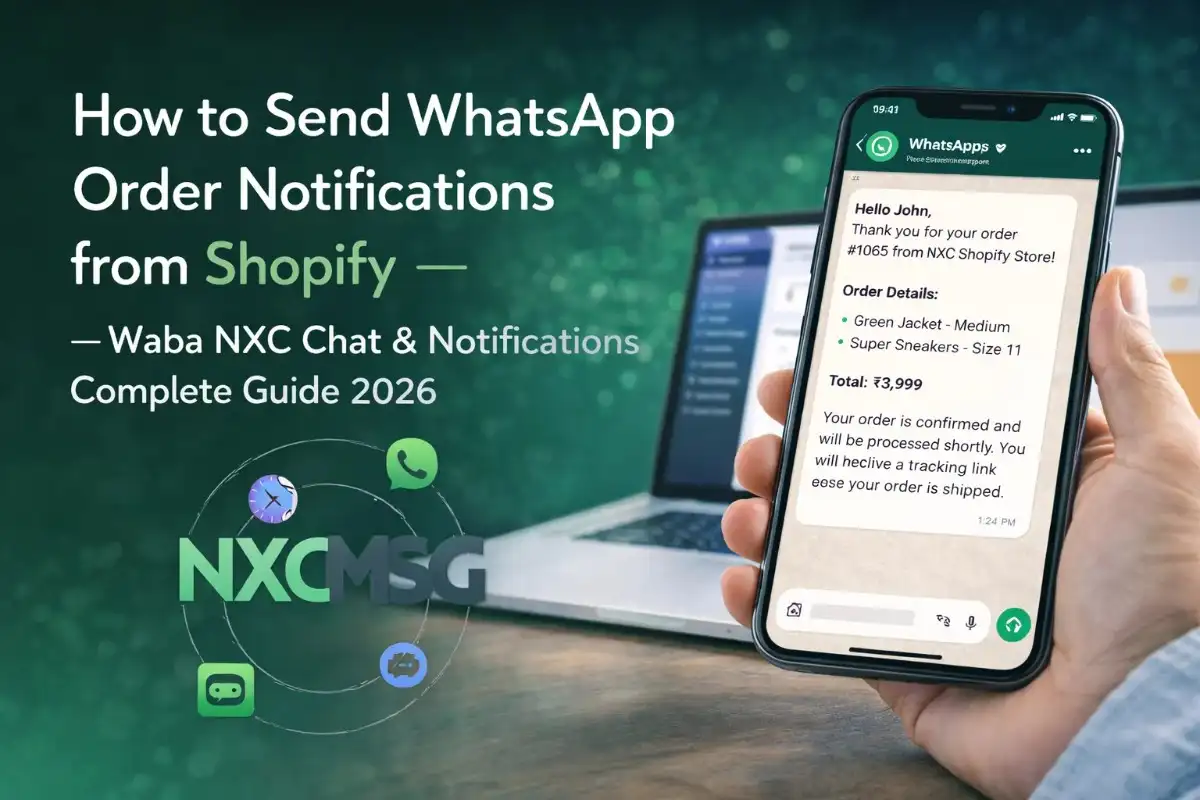
How a Shopify WhatsApp Order Notification Looks on a Customer’s Phone
Case Study: D2C Skincare Brand — ₹2.1L Recovered & 70% Fewer Support Queries
D2C Skincare Brand — Ahmedabad (Shopify + Waba NXC App)
800–1,200 Shopify orders/month · Waba NXC Chat & Notifications app · NXCMSG WhatsApp Business API
Problem: Shopify email order confirmations had an 18% open rate. 60+ customers per day were messaging the business’s personal WhatsApp asking “is my order confirmed?” and “when will it ship?” — consuming 3 hours of staff time daily. Cart abandonment was at 71% with email recovery at 3% conversion.
Setup: Installed Waba NXC Chat & Notifications Shopify app. Configured API credentials from NXCMSG. Created three WhatsApp Business API templates in NXCMSG — abandoned cart, order processing, and order completed — all approved by Meta in under 30 minutes. Mapped templates in the Shopify app. Added WhatsApp chat widget to storefront.
19%Shopify abandoned cart recovery rate (up from 3% email)
₹2.1LAdditional revenue from recovered carts in 60 days
70%Reduction in “where is my order?” support queries
95%Order notification open rate (vs 18% Shopify email)
“Setting up the app took 20 minutes. We entered the API keys, mapped the templates, tested them, and it was live. The next morning we saw 6 abandoned cart recoveries overnight while the store was closed. That had never happened with email.”— Founder, D2C Skincare Brand, Ahmedabad
Best Practices for Shopify WhatsApp Order Notifications
- Create campaign-specific templates: Your abandoned cart WhatsApp should reference the specific products and include the exact cart recovery URL. Your order processing template should be celebratory. Your order completed template should include the tracking link prominently. Use different templates for each — not one generic message for all three Shopify events.
- Always test before going live: Use the Send Test button for every template mapping. Verify that the customer name variable renders correctly, the checkout URL points to your actual Shopify store (not example.com), and the order number appears as expected. Test with a real Shopify test order to confirm end-to-end delivery.
- Set abandoned cart timing correctly: The optimal Shopify abandoned cart WhatsApp timing in India is 30–45 minutes after abandonment — enough time for the customer to have genuinely left, but close enough that they still remember the products. Do not send immediately — the customer may still be browsing.
- Keep order notification messages concise: Order Processing: order number + total + thank-you (3 lines maximum). Order Completed: shipped confirmation + tracking link + delivery estimate (4 lines). Customers want information, not marketing copy, in transactional Shopify WhatsApp notifications.
- Use the WhatsApp chat widget: Enable the chat widget on your Shopify storefront to capture pre-sales queries from customers who are browsing but not yet purchasing. The widget uses the same WhatsApp Business number from your API Configuration — no additional setup required.
- Click Refresh Templates after creating new ones in NXCMSG: If you create and submit a new template in NXCMSG’s template manager, click Refresh Templates in the Shopify app’s Template Mapping section to load the newly approved template into the dropdown. Always wait for Meta approval before refreshing — unapproved templates will not appear.
🛍️ Shopify WhatsApp Order Notifications
Add WhatsApp Notifications to Your Shopify Store — Live in 30 Minutes
Abandoned cart recovery, order processing notifications, order completed WhatsApp updates, and storefront chat widget — all from the Waba NXC Chat & Notifications Shopify app powered by NXCMSG. No developer. Works on all Shopify plans.
✔Install from Shopify App Store
✔Abandoned cart recovery WhatsApp
✔Order processing + completed notifications
✔WhatsApp chat widget on store
✔Multi-language template support
✔Free 14-day NXCMSG trial
+91 98079 80778 · [email protected] · Free setup call available
Meta-approved BSP · All Shopify plans · INR billing · India-based support