Jun 24, 2026
Integrating the WhatsApp Business API with your CRM helps you automate lead follow-ups, send notifications, manage conversations, and track customer interactions in one place. This guide explains how to connect WhatsApp API with Zoho CRM, HubSpot, and Salesforce in a compliant and scalable way.
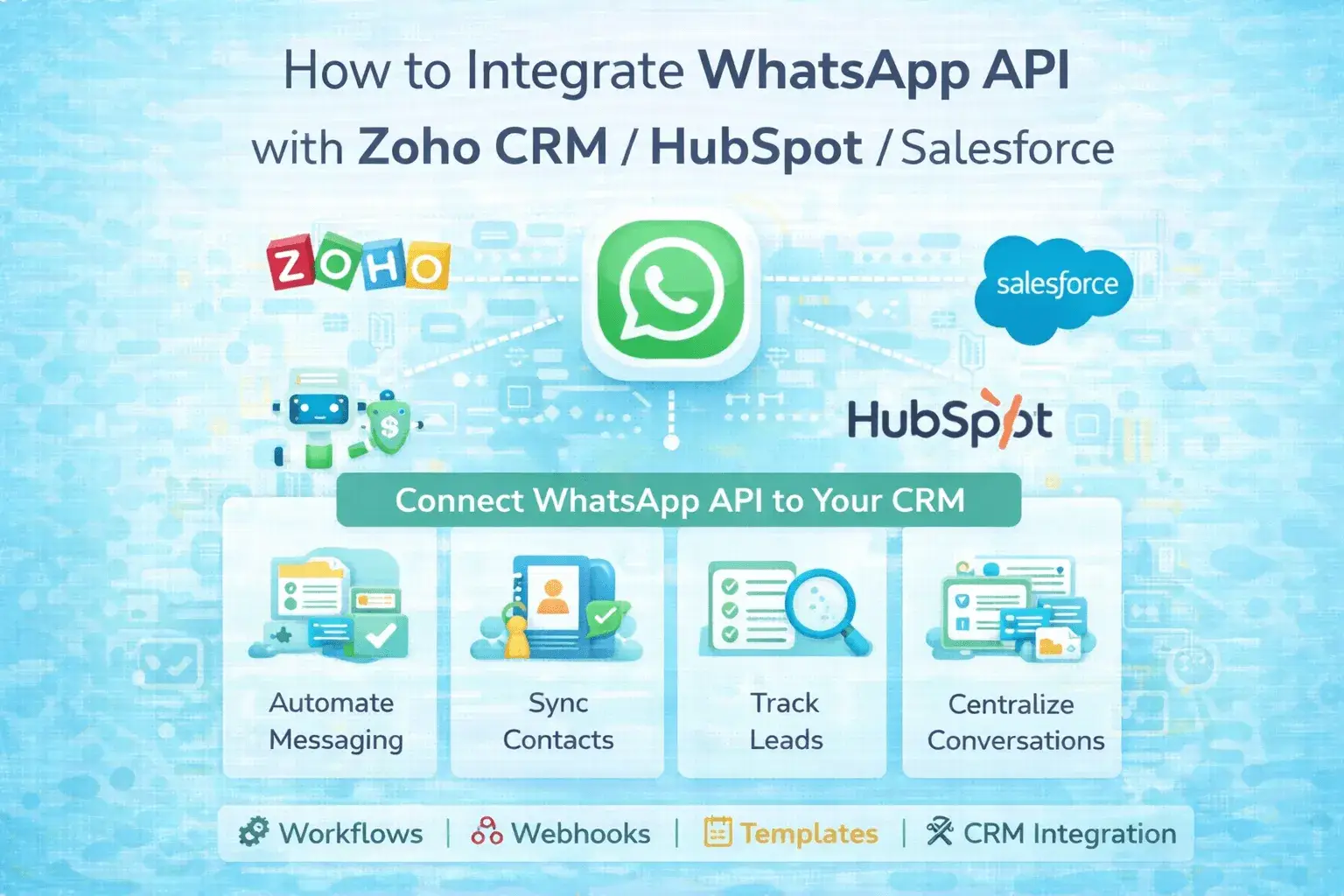
Why IntegrateWhatsApp API with CRM?
Businesses use
WhatsApp CRM integration to:
• Automate lead
responses instantly
• Send order
updates, reminders, OTPs, and support messages
• Sync
conversations with contact records
• Trigger
workflows based on user actions
• Improve
response rate and conversion
Since WhatsApp
has high open rates (often above 90%), integrating it with CRM increases
engagement compared to traditional email marketing.
Step-by-Step
Integration Process
The process is
similar for all CRMs:
1️ Get WhatsApp Business API Access
You need:
• A verified
Facebook Business Manager account
• Approved
WhatsApp Business Account (WABA)
• A registered
phone number
• Approved
message templates
You can apply
directly through Meta or use an official WhatsApp Business Solution Provider
(BSP).
🔹 Integrate WhatsApp API with Zoho CRM
Method 1: Using
Zoho Marketplace Extension
Search for
WhatsApp integrations inside Zoho Marketplace.
Steps:
1. Install
WhatsApp extension
2. Connect your
API credentials (Access Token, Phone ID, Webhook URL)
3. Map WhatsApp
fields to Zoho leads/contacts
4. Set
automation rules
Method 2: Using
Webhooks + Zoho Flow
• Configure
WhatsApp webhook
• Connect
webhook to Zoho Flow
• Create
automation triggers
Use Case: Auto-create lead when a WhatsApp
message is received.
🔹 Integrate WhatsApp API with HubSpot
Method 1:
Native WhatsApp Integration (via official provider)
Some providers
offer direct HubSpot integration.
Steps:
1. Install
WhatsApp integration from HubSpot App Marketplace
2. Connect
WhatsApp Business Account
3. Enable
contact sync
4. Create
workflow automation
Method 2: Using
Zapier or Make (Automation Tools)
• Trigger:
New WhatsApp message
• Action:
Create/Update Contact in HubSpot
Use Case: Send automated WhatsApp follow-up
after form submission.
🔹 Integrate WhatsApp API with Salesforce
Method 1:
Salesforce AppExchange Integration
Install
WhatsApp connectors from Salesforce AppExchange.
Steps:
1. Install
WhatsApp connector
2. Configure
API credentials
3. Enable
message tracking
4. Add WhatsApp
as a communication channel
Method 2:
Custom API Integration
Developers can
use:
• WhatsApp
Cloud API
• Salesforce
REST API
• Middleware
server
Use Case: Log WhatsApp conversations inside
Opportunity records.
Technical
Requirements
To integrate
successfully, ensure:
• Secure
webhook endpoint (HTTPS)
• Verified
Business Account
• Approved
message templates
• CRM API
access
• Token
authentication
Best Practices
for WhatsApp CRM Integration
✔
Collect proper customer opt-in
✔ Use
approved templates for outbound messages
✔ Avoid
promotional spam
✔ Track
message status (sent, delivered, read)
✔ Use
automation but keep personalization
Benefits of CRM+ WhatsApp Automation
• Faster
lead response time
• Improved
customer engagement
• Centralized
communication history
• Higher
conversion rate
• Reduced
manual follow-up
Conclusion