Jun 24, 2026
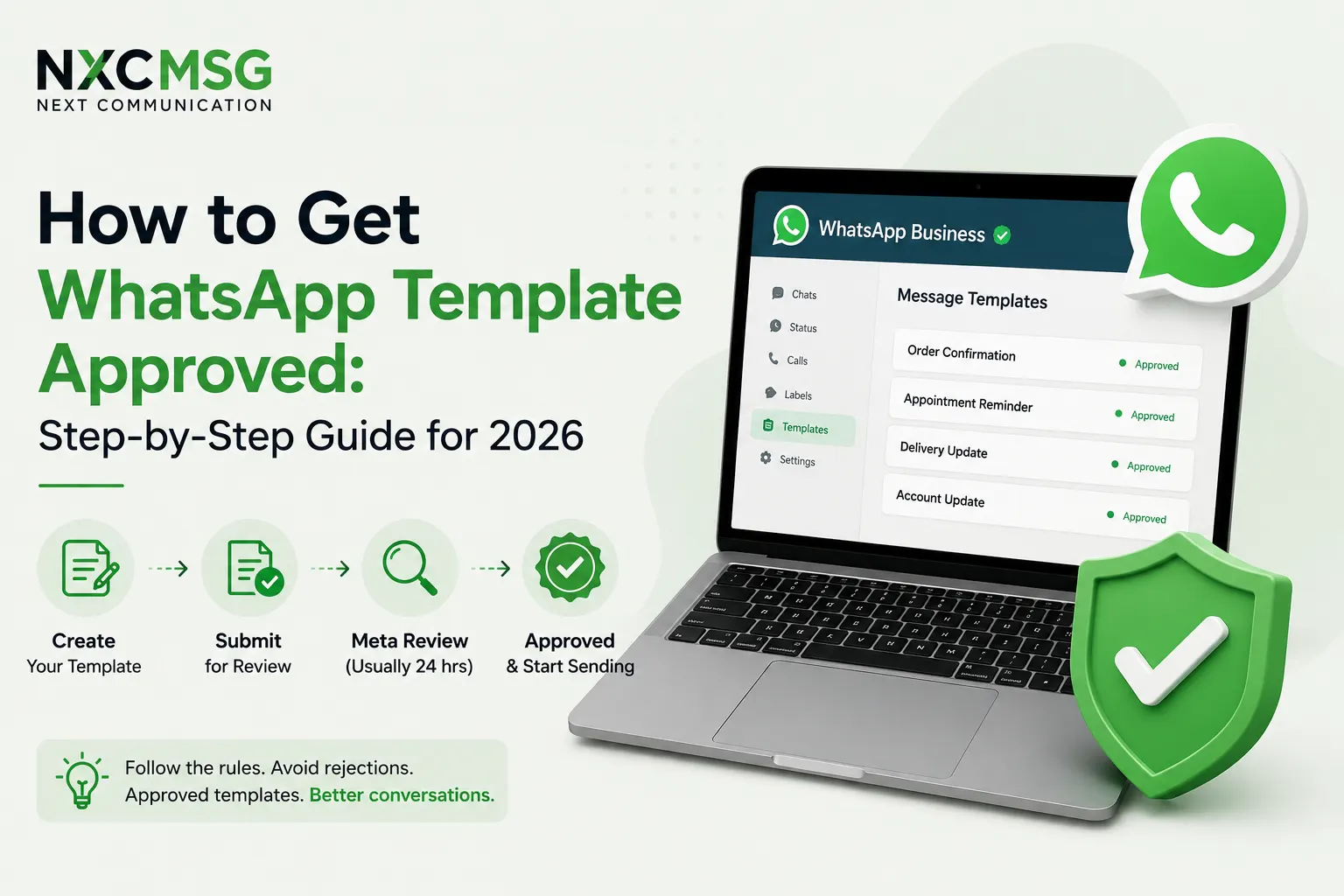
To access the WhatsApp Business API, you must create and verify a Meta Business Manager account. This account confirms your business identity and allows Meta to approve you for official WhatsApp messaging. Without Meta Business verification, WhatsApp API access is not possible.
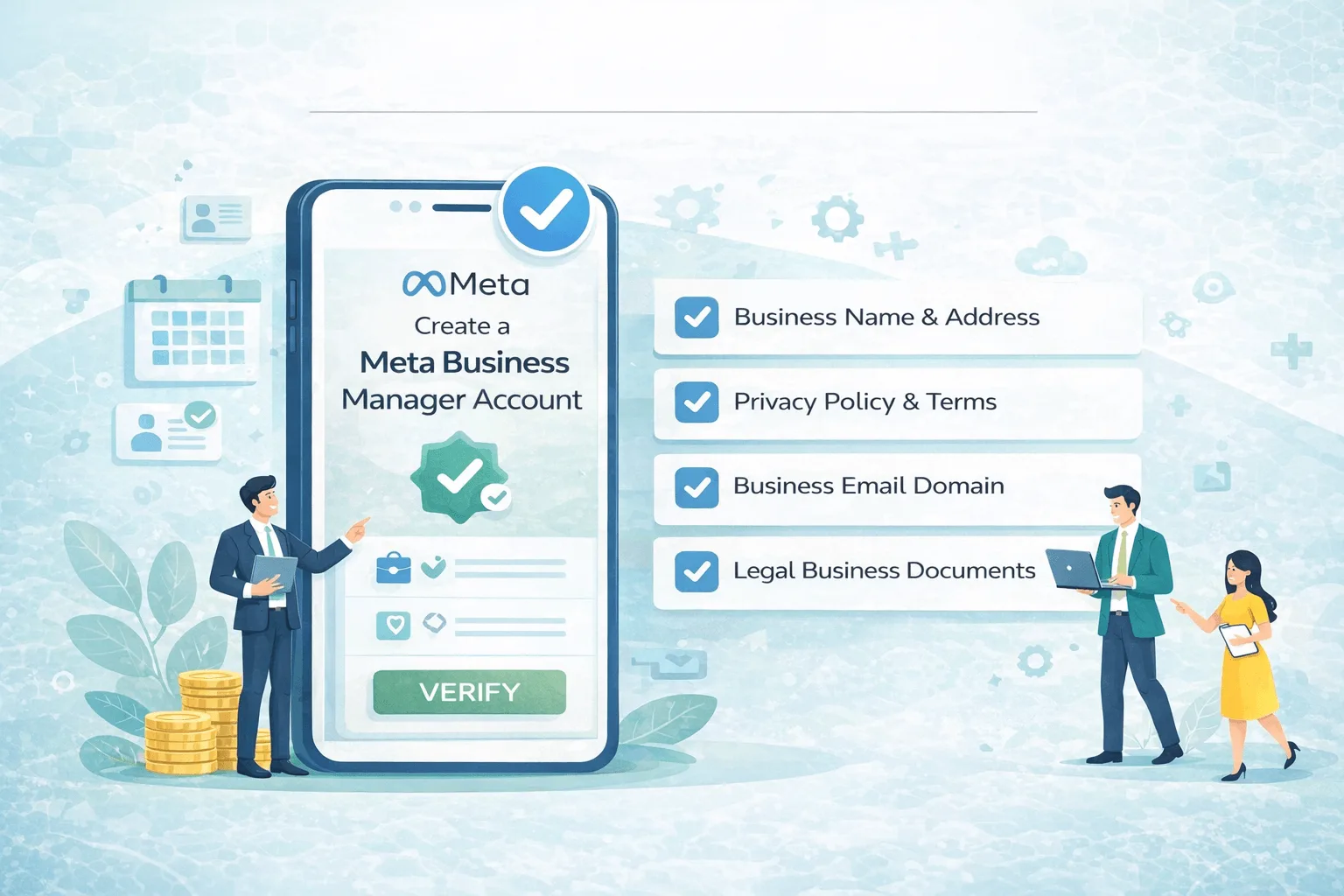
How to Create a Meta Business Manager Account
A Meta
Business Manager account is mandatory to access WhatsApp Business API,
run Meta ads, and verify your business with Meta.
Step 1: VisitMeta Business Manager
Go to business.facebook.com and
click Create an Account.
You must log in
using a personal Facebook profile (used only for admin access)nal
content submitted as Utility
Fill in the
following details carefully:
• Business
Name (exact legal name)
• Your
Name (admin)
• Business
Email Address (use a company domain email, not Gmail/Yahoo)
Tip: Use the
same business name as on GST or registration documents to avoid rejection.
Step 3: AddBusiness Information
Provide:
• Business
Address (matching legal documents
• Website
URL (must include Privacy Policy & Terms of Service)
• Business
Phone Number
Meta checks
website credibility during verification.
Step 4: AddYour Business Assets
Inside Business
Settings, add:
• Facebook
Page
• Ad
Account (optional but recommended)
• WhatsApp
Account (later during API setup)
You can skip
some assets and add them later if needed.
Go to:
Business Settings → Security Center → Business Verification
You’ll need:
• GST
Certificate / CIN / Shop Act / Business Registration
• Legal
Business Name & Address
• Website
with Privacy Policy and Terms
• Business
email domain
Verification
time: 1–3 working days (can be faster if documents are clean).
Step 6: EnableTwo-Factor Authentication (Mandatory)
Meta
requires 2FA for all admins:
• Go
to Security Center
• Enable Two-Factor
Authentication
• Apply to
everyone
Without this,
WhatsApp API access will be blocked
Step 7: AddWhatsApp Business Account (Later)
Once verified,
your BSP (like NXC Controls, Interakt, WATI, etc.) will:
• Connect
your Business Manager
• Create
WhatsApp Business Account
• Submit
templates
• Activate
AP
Common Reasons
for Rejection (Avoid These)
- Mismatch in
business name
- No Privacy Policy or Terms page
- Free email domains (gmail/yahoo)
- Fake or incomplete address
- Unclear website content
Pro Tip forWhatsApp API Approval
• Use
a real business website
• Add About
Us, Contact, Privacy Policy, Terms
• Ensure
branding matches documents
• Keep business category accurate