Jun 24, 2026
Discover how Instagram automation with WABA NXCMSG helps businesses manage DMs, auto-reply to comments, and respond to story mentions instantly. Improve customer engagement, save time, and boost conversions with smart automation tools designed for modern social media marketing.
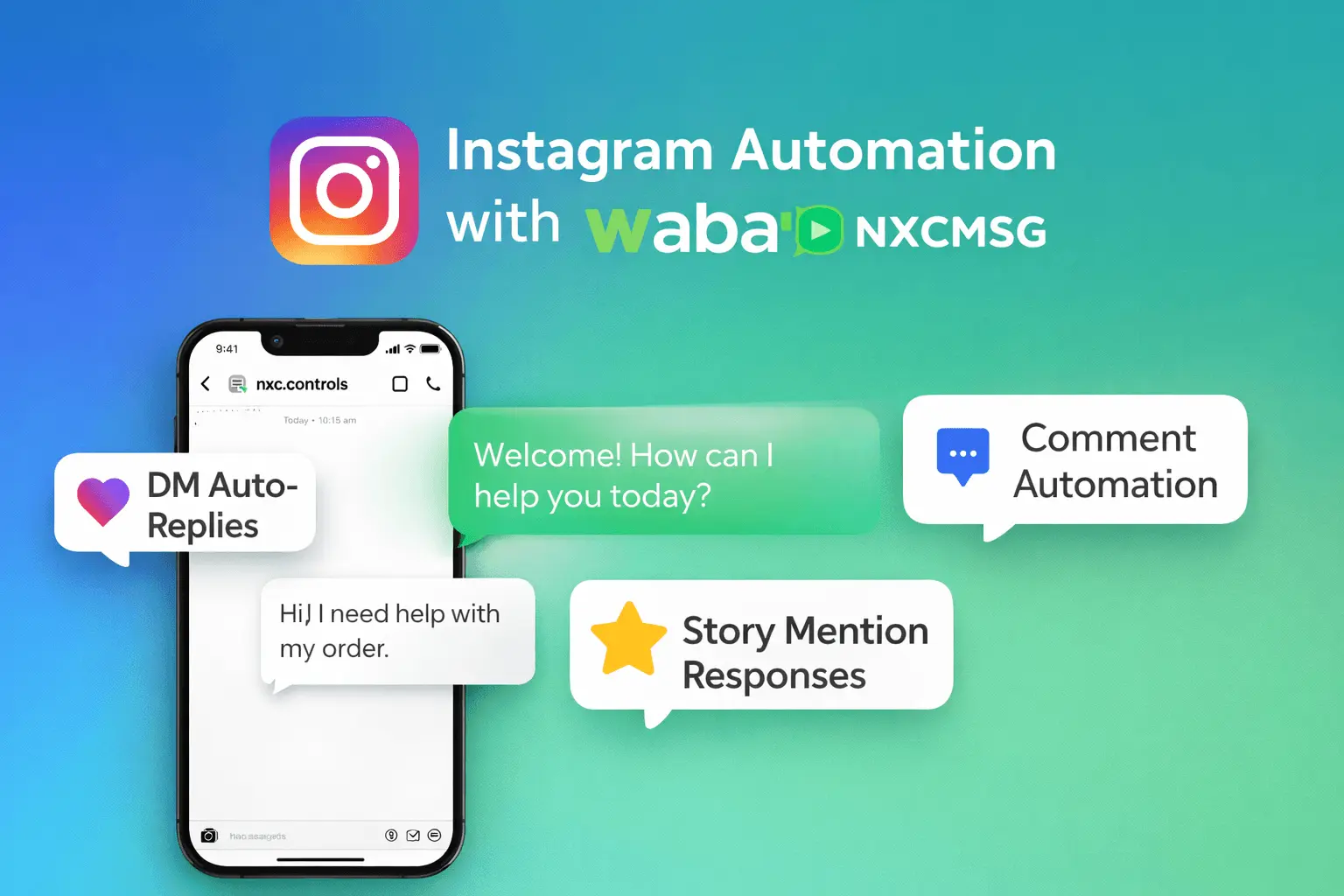
3automation types: DM auto-replies, comment replies, story mentions
24/7automatic responses — even when your team is offline
0code required — built entirely using the NXCMSG no-code platform
1unified inbox — Instagram DMs alongside your WhatsApp chats
Instagram DMs and comments are where buying decisions happen — but most businesses are too slow to respond. A potential customer asks "how much?" on a reel and hears nothing for 4 hours. They've already bought from a competitor. WABA NXCMSG's Instagram Automation changes this: your account responds instantly, around the clock, without a single team member having to be online.
What You Need Before Starting
Before connecting Instagram to NXCMSG, you need three things in place. All three are free and can be set up in under 15 minutes if you haven't already.
- An Instagram Business or Creator account — personal accounts cannot connect to the API. See below for how to switch.
- Your Instagram account linked to a Facebook Page — Meta requires this connection for all Instagram Business API access. The Page doesn't need to be active; it just needs to exist and be linked.
- Admin access to that Facebook Page — you must be the Page admin (not just an editor or analyst) to authorise the NXCMSG connection.
📱
How to Switch from Personal to Business Account
Open Instagram app → Your Profile → tap the ≡ menu → Settings → Account type and tools → Switch to professional account → Choose Business → follow the on-screen steps. When prompted, connect it to your Facebook Page. This takes about 3 minutes and is free. Your existing followers, posts, and content are not affected.
Step 1 — Connect Your Instagram Account to NXCMSG
Connect your favourite tools and automate your workflow
WhatsApp
Your connected WhatsApp Business number.
→
Instagram Automation
Automate DMs, comment replies, and story mention responses.
← Connect here
→
Salesforce CRM
Sync contacts, log activities, automate CRM from flows.
→
Shopify
Connect your Shopify store for automated notifications.
→
📸 NXCMSG Integrations page — Instagram Automation card highlighted
-
Go to Integrations from the left sidebar
In your NXCMSG dashboard, scroll down the left menu and click Integrations. On the integrations grid, find and click the Instagram Automation card.
🔗 Direct link: waba.nxccontrols.in/app/user/integrations -
Click "Connect with Facebook"
Instagram uses Facebook for business account login — this is normal. Meta owns both platforms and all Instagram Business API access flows through Facebook. Click the Connect with Facebook button to begin.
-
Log in with the Facebook account that manages your Page
A Facebook login popup will open. Sign in with the Facebook account that is an admin of the Facebook Page linked to your Instagram Business account. If you're not sure which account, check your Instagram Settings → Linked accounts.
-
Allow all requested permissions
Facebook will ask you to approve permissions for NXCMSG. Allow all of them — each is required for a specific feature:
⚠️ If you skip any permission, the corresponding feature will not work. You can always reconnect and re-approve.instagram_basicReads your Instagram account info, username, and profile picture.
instagram_manage_messagesSends and receives DMs — required for DM auto-replies and chatbot flows.
instagram_manage_commentsReads comments on your posts — required for comment auto-reply triggers.
pages_manage_metadataConnects webhook events from your Facebook Page — required for story mention detection.
-
Confirm the green "Active" badge
After authorising, you'll be redirected back to NXCMSG. Your Instagram account name and handle will appear with a green Active badge — confirming the connection is live. Instagram DMs sent to your account will now appear in your NXCMSG Chats section.
📸
@yourbusiness ● Active
Instagram Business Account · Connected via Facebook
Connected Instagram account with Active badge and available actions
Step 2 — Set Up DM Auto-Replies (Keywords)
DM auto-replies let your Instagram respond automatically when someone sends you a direct message containing specific keywords. A customer DMs "price" at midnight — they get an instant reply. No staff needed.
DM auto-replies use the same Chatbot system as WhatsApp. Here's how to set them up:
-
Go to Chatbots from the left menu
In the NXCMSG dashboard, navigate to the Chatbots section from the left sidebar.
-
Select your Instagram device in the device dropdown
At the top of the Chatbots page, find the device dropdown and switch from your WhatsApp number to your Instagram account (look for the Instagram icon). This is critical — chatbots are device-specific. If you skip this, the chatbot will apply to WhatsApp, not Instagram.
📱 The device dropdown appears at the top-right of the Chatbots page. Look for the Instagram icon. -
Click "Add Chatbot" and configure your keyword and reply
Add the keywords that should trigger the auto-reply (e.g., "price", "pricing", "cost", "how much"). Then write your reply message. Click Save.
How It Looks — DM Auto-Reply in Action
@
yourbusiness
Instagram Business · Auto-Reply Active
how much does it cost? 💰
9:43 PM
Thanks for your interest! Our prices start at ₹999. Would you like me to send you our full price list and details? 📋
Reply "YES" for the complete pricing or "CALL" to speak with us directly.
Reply "YES" for the complete pricing or "CALL" to speak with us directly.
9:43 PM · Auto-Reply
YES
9:44 PM
Here's our complete price list: 📎
Basic Plan — ₹999/month
Pro Plan — ₹2,499/month
Enterprise — Custom
Want to book a free 15-min call? Reply "BOOK" 🗓️
Basic Plan — ₹999/month
Pro Plan — ₹2,499/month
Enterprise — Custom
Want to book a free 15-min call? Reply "BOOK" 🗓️
9:44 PM · Auto-Reply
💡
Pro Tip — Use Multiple Keywords per Rule
Add all variations of a keyword to the same rule: "price", "pricing", "cost", "how much", "rate", "charges" — all trigger the same reply. Instagram customers type queries differently, so broad keyword coverage ensures no enquiry slips through. Keywords are case-insensitive — "Price", "PRICE", and "price" all match.
Step 3 — Set Up Comment Auto-Replies
Comment auto-replies are one of Instagram's most powerful conversion tools. Someone comments "price?" on your reel — they get an instant private DM with your pricing. Your reel doesn't look spammy. The customer gets an immediate, personal response. Here's how to configure it:
New Auto-Reply Rule — Comment on Post
Instagram
price
available
link
how much
Comment Auto-Reply rule builder in NXCMSG — Go to Integrations → Instagram → Auto-Replies
-
Go to Integrations → Instagram → Auto-Replies
Click "Auto-Replies" on your connected Instagram account card, then click New Rule.
-
Choose trigger type: "Comment on Post"
Select "Comment on Post" from the trigger type dropdown.
-
Configure when to reply
Choose your scope:
- All comments — leave both keyword and post fields empty
- Specific keywords — add trigger words like "price", "available", "link"
- Specific posts — select which posts or reels to monitor (great for promotions)
-
Choose how to reply
Send DM (most popular) — sends a private message to the commenter. Reply to Comment — posts a public reply. Both — does both. For sales enquiries, always use DM — public comment replies with pricing or links look spammy and may deter other visitors.
-
Type your message and click Create Rule
Write the message the commenter will receive. Click Create Rule — the rule activates immediately.
✅
Good Practice
Trigger: Comments containing "price" or "how much" → Reply via: Send DM → Message: "Hi! Thanks for your interest. Here's our price list: [link]. Reply here if you have questions!"
❌
Avoid
Trigger: All comments (no filter) → Reply via: Both DM + Comment. Replying to every comment publicly looks spammy. Use DM for sales replies and public replies for thank-you messages only.
Step 4 — Set Up Story Mention Replies
When a customer posts your product in their Instagram Story and tags your account, that's one of the highest-value social signals you can get. NXCMSG automates an instant, personalised DM reply the moment someone mentions you — turning every organic mention into a loyalty or conversion opportunity.
-
Go to Integrations → Instagram → Auto-Replies → New Rule
From your connected Instagram account card, click Auto-Replies → New Rule.
-
Choose trigger type: "Story Mention"
Select "Story Mention" from the trigger type dropdown. This fires whenever any Instagram user mentions your account handle (@yourbusiness) in their Story.
-
Write your reply message and click Create Rule
Write the DM that the person who mentioned you will receive instantly. This message should feel personal and warm — it's going to a customer who voluntarily promoted your brand.
🌟
High-Converting Story Mention Reply Examples
For product businesses: "Hey {{name}}, thanks so much for the shoutout! 🙌 We love seeing you enjoy [Product]. As a little thank you — here's 10% off your next order: STORY10 🎁"
For service businesses: "Hey! Thank you so much for mentioning us in your Story ❤️ It genuinely makes our day. If you ever need anything or have a friend who could use our help, we're always here!"
When people see that mentioning you gets a fast, warm personal response, they do it again. Story mentions compound over time — this single auto-reply rule can generate dozens of organic mentions per month.
Step 5 — Use Chatbot Flows with Instagram
Single-message auto-replies are powerful. But Chatbot Flows are where the real automation happens — multi-step conversations that ask questions, collect information, and guide users through a complete journey entirely on Instagram DMs.
What Instagram Chatbot Flows Can Do
Lead Collection
Someone comments "interested" on your post → Flow starts in DM → asks for name → email → budget → saves all data to Google Sheets or CRM automatically.
Appointment Booking
Customer DMs "book" → Flow asks preferred date and time → confirms booking → sends reminder 24 hours before. Entire booking without a human agent.
Product Discovery
Customer asks about products → Flow asks their budget and preference → recommends the right product → sends catalogue link or payment link to complete purchase.
Quiz / Survey
Run a skin type quiz, product recommender, or feedback survey entirely inside Instagram DMs. Responses collected and stored — no external form links needed.
How to Connect a Flow to Instagram
-
Create or open a Flow in the NXCMSG Flow Builder
Go to Flows from the left menu. Create a new flow or use an existing one. Design your multi-step conversation — text messages, input collection, conditions, and integrations.
-
Copy the Flow UUID
On the flow details page, copy the Flow UUID — a unique identifier for that specific flow (e.g.,
e3ebf38d-6e55-4f5e-823e-a4cf0d6598d2). -
Create an Auto-Reply rule and paste the Flow UUID
Go to Integrations → Instagram → Auto-Replies → New Rule. In the Chatbot Flow UUID field, paste the UUID you copied. Set your trigger (DM keyword, comment keyword, or story mention).
-
Save the rule — the flow activates automatically on trigger
When the trigger fires (someone comments the keyword, mentions you in a Story, or sends a matching DM), the connected Flow starts automatically in that user's Instagram DMs.
⚠️
Important Instagram Flow Limitation
Instagram DMs do not support WhatsApp-style interactive buttons or list menus. When building flows for Instagram, use only text message nodes and text input collection nodes. Avoid button, quick-reply, or list picker nodes — these will not render correctly in Instagram DMs. Design your flows to use number-based selection ("Reply 1 for X, Reply 2 for Y") instead of tap buttons.
Step 6 — View & Reply to Instagram DMs in NXCMSG
All Instagram DMs from your connected account appear in the same Chats section as your WhatsApp conversations — one unified inbox for all your business messaging channels.
-
Go to Chats from the left menu
Click Chats in the NXCMSG left sidebar.
-
Use the device switcher to select your Instagram account
At the top of the Chats panel, click the device switcher (shows your current device name or number). Select your Instagram account — look for the Instagram icon. The chat list will switch to show your Instagram DMs.
💡 You can switch between WhatsApp and Instagram views without logging out — it's a single-click switch in the same dashboard -
Click any conversation to view and reply
All incoming Instagram DMs are listed. Click any conversation to see the full message thread and type a manual reply. Agents can respond directly from the NXCMSG inbox — no need to log into Instagram separately.
⏰
The 24-Hour Messaging Rule — Important
Instagram's Meta policy allows businesses to reply to a DM only within 24 hours of the user's last message. After 24 hours of no message from the user, you cannot initiate contact until they message you again. This is a Meta platform policy — not an NXCMSG limitation. The solution: use comment auto-replies and story mention replies to re-engage users who have gone quiet. When they respond to your comment reply or story mention reply, a new 24-hour window opens.
Business Use Cases — Who Benefits Most from Instagram Automation
Fashion & D2C Brands
Comment "price?" on any product reel → instant DM with pricing, size guide, and checkout link. Converts reel viewers into buyers without manual intervention.
Fitness & Wellness
Comment "join" on transformation posts → DM flow collecting name, goal, and preferred schedule → auto-enrols in the right programme. Story mentions from clients trigger instant gratitude DMs with a referral code.
Clinics & Healthcare
DM keyword "appointment" → booking flow → selects doctor, date, and time slot directly inside Instagram DMs. Patients who mention the clinic in Stories get a thank-you DM instantly.
Coaching & Education
Comment "details" on course promo posts → DM with programme overview and fee. Multi-step flow collects lead details and schedules a free discovery call automatically.
Hospitality & Travel
Comment "rates" on hotel/resort content → instant DM with current pricing, availability, and booking link. Story mentions from guests trigger automated thank-you DMs with a loyalty discount.
Beauty & Salons
Comment "book" on before/after posts → DM booking flow for the right service and stylist. Client tags in Stories → instant DM with a "Share and Save 10%" offer to encourage more mentions.
Instagram vs WhatsApp Automation on NXCMSG — Key Differences
| Feature | WhatsApp via NXCMSG | Instagram via NXCMSG |
|---|---|---|
| Interactive buttons | ✔ Supported (Quick Reply, List) | ✗ Not supported in DMs |
| Comment triggers | ✗ Not applicable | ✔ Reply to post/reel comments |
| Story mention triggers | ✗ Not applicable | ✔ Auto-DM on story mention |
| Messaging window | 24h window (service conv.) | 24h window from last user message |
| Broadcast messages | ✔ To opted-in contacts | ✗ Not available on Instagram |
| Chatbot flows | ✔ Text + buttons + lists | ✔ Text only (no buttons) |
| Unified inbox | ✔ Same NXCMSG Chats inbox | ✔ Same NXCMSG Chats inbox |
| Template messages | ✔ Meta-approved templates | ✗ Not applicable (no templates) |
| Keyword-based chatbots | ✔ Full chatbot system | ✔ Same chatbot system |
NXCMSG supports multiple auto-reply rules per Instagram account. You can create separate rules for different keywords, different posts, different reply methods (DM vs comment), and different flows. There is no hard cap for standard plans — for high-volume setups with many rules, contact NXCMSG support to confirm any plan-specific limits. Rules can be toggled on/off individually, so you can pause seasonal campaigns without deleting them.
Troubleshooting
"No Instagram Business Account found"
This appears when: (1) your Instagram account is a personal account — switch to Business, (2) your Instagram is not linked to a Facebook Page — connect them in Instagram Settings → Linked accounts, or (3) you logged in with the wrong Facebook account — use the Facebook account that is the admin of the Page linked to your Instagram.
DMs not appearing in Chats
Check these in order: (1) In the NXCMSG Chats section, make sure you've switched to your Instagram device in the device switcher — Instagram DMs won't show if WhatsApp is selected. (2) Confirm your account status is "Active" (not "Inactive") in Integrations → Instagram. (3) New DMs may take a few seconds — try refreshing the page. (4) If nothing works, disconnect and reconnect your Instagram account.
Auto-replies not triggering
Check: (1) The rule is enabled — look for the green toggle next to the rule. (2) Your keywords match exactly — keywords are case-insensitive but must be the exact word (not a partial match). (3) For comment rules — verify you haven't filtered to specific posts that don't include the post being commented on. (4) Comments from your own account are ignored — test with a different account.
Account showing "Inactive"
An Inactive status usually means the Facebook token has expired or permissions were revoked. Go to Integrations → Instagram, click Disconnect, then reconnect by clicking "Connect with Facebook" again. Make sure to allow all four permissions during reconnection. Token expiry is common after Facebook password changes or security reviews.
"Outside 24-hour messaging window"
This is a Meta API error — Instagram allows agent replies only within 24 hours of the user's last message. This is not fixable by NXCMSG. Wait for the user to send you a new message (which resets the 24-hour window), or use a comment auto-reply on their comments to prompt them to DM you again.
📸 Automate Your Instagram — Start Today
Connect Instagram to NXCMSG and Never Miss an Enquiry Again
DM auto-replies, comment automation, story mention responses, and multi-step chatbot flows — all from one platform. Available on every NXCMSG plan.
✔DM keyword auto-replies
✔Comment auto-replies
✔Story mention responses
✔Multi-step chatbot flows
✔Unified WhatsApp + Instagram inbox
✔14-day free trial
+91 98079 80778 · [email protected] · India-based support in Hindi & English
Meta-approved BSP · Instagram + WhatsApp · INR billing · Onboarding call included